
Archive for the ‘Android’ Category

Android – Application Theme Based on Platform Version

Tuesday, April 16th, 2013

When testing my Jack Sparrow Compass application on the Jelly Bean 4.2, I realized that all its Users Interface (or overall theme) was still of the Gingerbread (on which I had developed this application). Even though that interface doesn’t look that bad on Jelly Bean, it’s not consistent with other application interface, and I would like to keep it consistent with new platforms, but would still like to keep the compatibility with old Android versions.

After few tries and tricks, I was successful, and I’m going to share that here for easy future reference. To best understand the problem, let’s begin from start. Here is how my application was appearing on Jelly Bean 4.2:

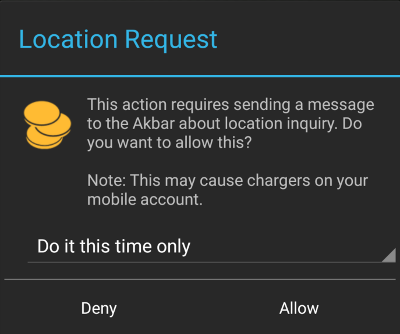
But if I look at other native application of the Jelly Bean, they have quite different theme and styles as shown below:

So, I wanted to look my application dialog similar to above one on Jelly Bean or higher version, but still appear the same on the old version. The trick lies in the styles XML files in corresponding Android version folder. So, I create my custom theme styles (in res/values/styles.xml):

1
2
3
4
<?xml version="1.0" encoding="utf-8"?>
<resources>
    <style name="MainTheme" parent="@android:style/Theme.Light.NoTitleBar"></style>
</resources>

Here I’m defining the MainTheme for my application and inheriting it from the Android built-in “Theme.Light.NoTitleBar”. This is the style I plan to apply to my main Activity in the Application manifest file by adding following attribute:android:theme=”@style/MainTheme”

Note: I’m using the “Theme.Light.NoTitleBar” as the parent style because I don’t want a default TitleBar in my application. If you want one, please choose the “Theme.Light”.

This is not all you want, but the magic comes by adding the correct style based on higher version styles. For this you create res/values-v11/styles.xml (for Android 3.0+) and res/values-v14/styles.xml (for Android 4.1) files under corresponding values-XX folders.

So here is the XML file I created under res/values-v11/styles.xml:

1
2
3
4
<?xml version="1.0" encoding="utf-8"?>
<resources>
    <style name="MainTheme" parent="@android:style/Theme.Holo.Light.NoActionBar"></style>
</resources>

And here is the XML file I created under res/values-v14/styles.xml:

1
2
3
4
<?xml version="1.0" encoding="utf-8"?>
<resources>
    <style name="MainTheme" parent="@android:style/Theme.DeviceDefault.Light.NoActionBar"></style>
</resources>

As you can see I’m using the different parent style per Android version, and this does the magic. Now if you run your applicaiton on Android 2.2 or 2.3 it will use the default theme “Theme.Light.NoTitleBar”. If you run it on Android 3.0+ version, it will use Theme.Holo.Light.NoActionBar style, and similarly for Android 4.1, it will use Theme.DeviceDefault.Light.NoActionBar.

Note: To use the higher version styles, you must set your Android target version to the higher version i.e. “4.1″. Otherwise you will get the resource/style not found error.

Now if I run the application on 4.1, it will use the native theme on all the UI components as shown below:

It was a bit tricky to grasp in start, but once you get used to this theme concept model based on version folder, you will see how powerful this is when designing applications for future versions but still maintaining backward comparability with older versions. If you want to read more, I highly recommend you to check official “Themes and Styles” guidelines on Android website:
http://developer.android.com/guide/topics/ui/themes.html

Jelly Bean 4.2.2 On Nexus One

Wednesday, March 6th, 2013

I have been using the Jelly Bean 4.2.2 – v4.7 for few days now, and I must say that it’s working great so far. I covered all the installation steps and tricks in the previous article:
Installing Jelly Beans on Nexus One

However, with time, I learned something more about this ROM, and applied few more tricks to get a very smooth running Jelly Bean on my Nexus One (haven’t had a single crash since last 4 days). I thought to share these with others using the same (or similar ROMs) and see if this helps you guys too. So, here these are:

1: Custom Camera Application
The Camera in this ROM works, but it’s just functional i.e. the picture quality is very bad. I know the N1 camera quality is great, because I have used this a lot in Gingerbread and loved the quality. Fortunately, there are some workarounds available. The simplest is to use 3rd Party camera application from the Google Play store. The one I’m using and highly recommend are:
Camera ZOOM FX
HDR Camera

You will get way good quality pictures with these applications than the stock camera application.

2: Use SD Card Booster
I recommend installing some SD Card Booster form the Google App Store. There are many, but I tried the following and it works well for me:

https://play.google.com/store/apps/details?id=com.sdincrease.it

For my SD-Card, I got best performance with 1024 size. You can try few values on your system, and see which one works well for you. Once configured properly, you should get some good speed in running applications and playing movies from the SD-Card.

3: Install/Update Google Search
Go to Google Play store, search for “Google Search” and it will let you install or update the Google Search version. With this, you can use the voice search and input using the keyboard. It still needs the Internet (no offline version available yet) but still it’s better than nothing.

4: Integrate Link2SD
If you are using the Jelly Bean or any other custom ROM which provides the ROOT access, then I think this is the must have application for you. You can download Link2SD this from Google PlyStore. The configuration is simple, and there are many tutorials on how to setup this. So, I will not go into that detail. However, I would recommend one thing special, and that’s if you are using this ROM, partition your SD-Ext as FAT32 (instead of Ext2, Ext3 or Ext4). Though the linux paritions like EXT3 or EXT4 works, I had lot of permission issues using these. But FAT32 worked very well for me. If you are using Windows, you can use the MiniTool Partition tool to format your SD-Card. Again, there are many online tutorial on how to do that, so will not go in these details.

Note: Link2SD can’t work be juxtaposed with A2SD or similar scripts. So, if you want to use this, don’t use built-in A2SD or any other SD-Ext manager application.

5: Keep Dalvik Cache in Internal Memory
If you have low access speed SD-Card, then you may find it better to keep the Dalvik Cache in the internal memory. Doing this I have found the application to be more responsive and speedy. I’m not a guru on Android architecture, so may be there are some shortfalls of this, but so far this (keeping Dalvik Cahce in internal memory) has been working great for me. So, other thing I did different for Jelly Bean 4.2.1, is to keep the Dalvik Cache in internal memory. If you followed that ROM steps, for A2SD install, you need to do this in terminal:

1
2
3
4
5
# su 
# a2sd install
N 
N
Y

This means that you may have to keep cleaning up the Dalvik Cache from time to time. But fortunately you can do this from Recovery (I’m using CynogenMod Recovery). When you do this, system will build the cache again on next start-up. It should work well if you have comparatively low number of applications.

Note: If you want to use the A2SD, then you must have the Ext2 or Ext4 as second partition. Having the Fat32 as second partition works well with Link2SD, but doesn’t work with A2SD (and it doesn’t complain about this either). It simply will not move the cache.

Link2SD and Read-only file system Error

Monday, February 11th, 2013

I have been using Link2SD for few days now (on my Rooted NexusOne) and I simply loves this application. It solves all the issues of low internal memory for the custom applications.

However from time to time, the SD-Ext partition used by Link2SD gets corrupt. Now I’m not very sure whom to blame for this i.e. Android Kernal, Link2SD or anything application which writes files here. But anyway, I found a simple fix for any such problems, and that’s if you get the read-only file system error when installing or updating the SD-Ext in the Link2SD, you can quickly repair this from the ADB Shell. If you have never used this before, here is quick reference and guide:

http://developer.android.com/tools/help/adb.html

Once you have this tool. But the phone into recovery mode, and then run the ADB shell from your command prompt:

adb Shell

Once you see the shell prompt, you can check and fix your sd-ext partition by typing following command:

e2fsck -fpDC0 /dev/block/mmcblk0p2

If fixing is successful, re boot back into phone and try using the Link2SD again.

Update: A quick tip on this (based on my personal experience). If you are using Link2SD and your frequently get the file system error on your SD-Ext partition, then one trick which worked well for me is to change the SD-Ext partition format from the Ext3 or Ext4 to FAT32. This should get rid of most of the file system errors happen during transfer of files.

Android: CyanogenMod Recovery Partition Gets Overwritten During Next Boot

Wednesday, February 6th, 2013

I have been using the CyanogenMod Recovery partition to install custom ROMs, but with my stock Android 2.3.6 ROM, I was having an issue where the Recovery partition is getting restored with stock one with very next boot. This issue is also mentioned in notes for CM Recovery installation (http://wiki.cyanogenmod.org/w/Install_CM_for_passion):

Note: Some ROMs overwrite recovery at boot time so if you do not plan to immediately boot into recovery to install CyanogenMod, please be aware that this may overwrite your custom recovery with the stock one.

Though it was not a show-stopper as it gets fixed once I install the custom ROM, but what if you plan to use this recovery, but keep using the stock ROM. Fortunately, the solution for this is simple too. As mentioned above in the warning note, the Stock 2.3.6 ROM tries to restore the Recovery during the boot. The recovery backup is stored at the following path in System:
/system/recovery-from-boot.p

So, all you have to do to get rid of this automatic recovery overwrite is to delete this recovery backup file, and Android system will no longer overwrite. your custom recovery image. You can delete this file easily using ES File Explorer. If you have never used ES File Explorer, here is quick tutorial to do this:

1. Open ES File Explorer File Manager.
2. Select the menu button on your device and click on Settings.
3. Check the Up to Root option, then also check the Root Explorer option. When the prompt appears for root privileges, press the 4. Allow/Grant button.
5. Check the Mount File System option as well.
6. Go to the Root folder of your Android file-system i.e. “/” path.
7. Go to the “system” folder and long-tap on the recovery-from-boot.p file, and then delete it.

I hope you find this of help.

Android: Installing System Images using flashboot

Friday, February 1st, 2013

In my previous article, Installing Jelly Bean on Nexus One, I discussed how I was able to install Jelly Bean on my NexusOne using couple of tools and helper applications.

However, after a couple of days of exploring it, I decided to try to downgrade it back to Gingerbread (mainly because of the Camera issues). This step was even more simple than installing the Jelly Bean on my nexus one. The good thing was that I took the full backup of my Gingerbread before upgrading to the Jelly Bean (using ROM Manager). This backup folder had flash-able images of the system, boot and recovery partitions. So all I had to do to revert back the original version was to run couple of commands in the bootloader mode.

Here are the exact commands (for your info, and my future reference):

1. First you need to boot into bootloader mode. You can do this from key combination of your phone (for Nexus-One, it’s Power+Trackball down), or you can reboot into bootloader mode using the following adb command:

1
adb reboot-bootloader

2. Wait for your cell to reboot in bootloader mode, and once you see it, test it by running following command:

1
fastboot devices

If the above command lists your device, then you are good to go forward. Otherwise wait for few more second and/or check USB cable connection.

3. Once the fastboot mode is detecting the device, you can flash your Image and System flashable images using following commands:

1
2
fastboot flash boot boot.img
fastboot flash system system.img

4. The next step is to simply clear your cache and user-data to avoid any problem with previous ROM data.

1
2
fastboot erase userdata
fastboot erase cache

5. And at last, simply reboot your phone:

1
fastboot reboot

If everything went well, you should be able to see your previous version without any problems.