









Redesigning My 17-Year-Old Website with Claude
This website has been around since 2009. Over those years it has hosted my side projects, a blog that covers everything from Nexus One ROMs to SAML pitfalls, and, for the last several years, the Online Subtitle Translator, which has quietly grown into the busiest corner of the site. What it hadn’t had in a very long time was a proper facelift.
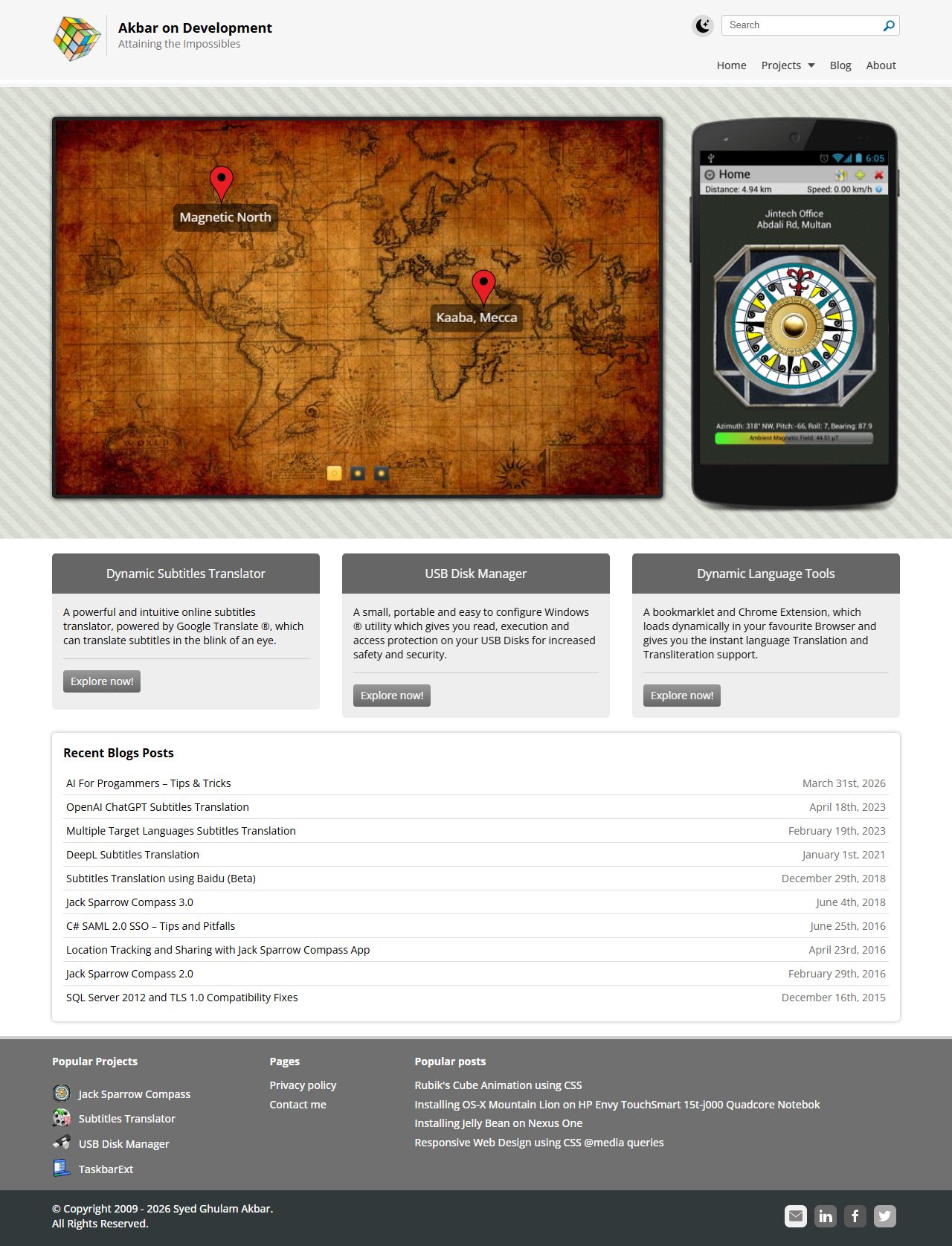
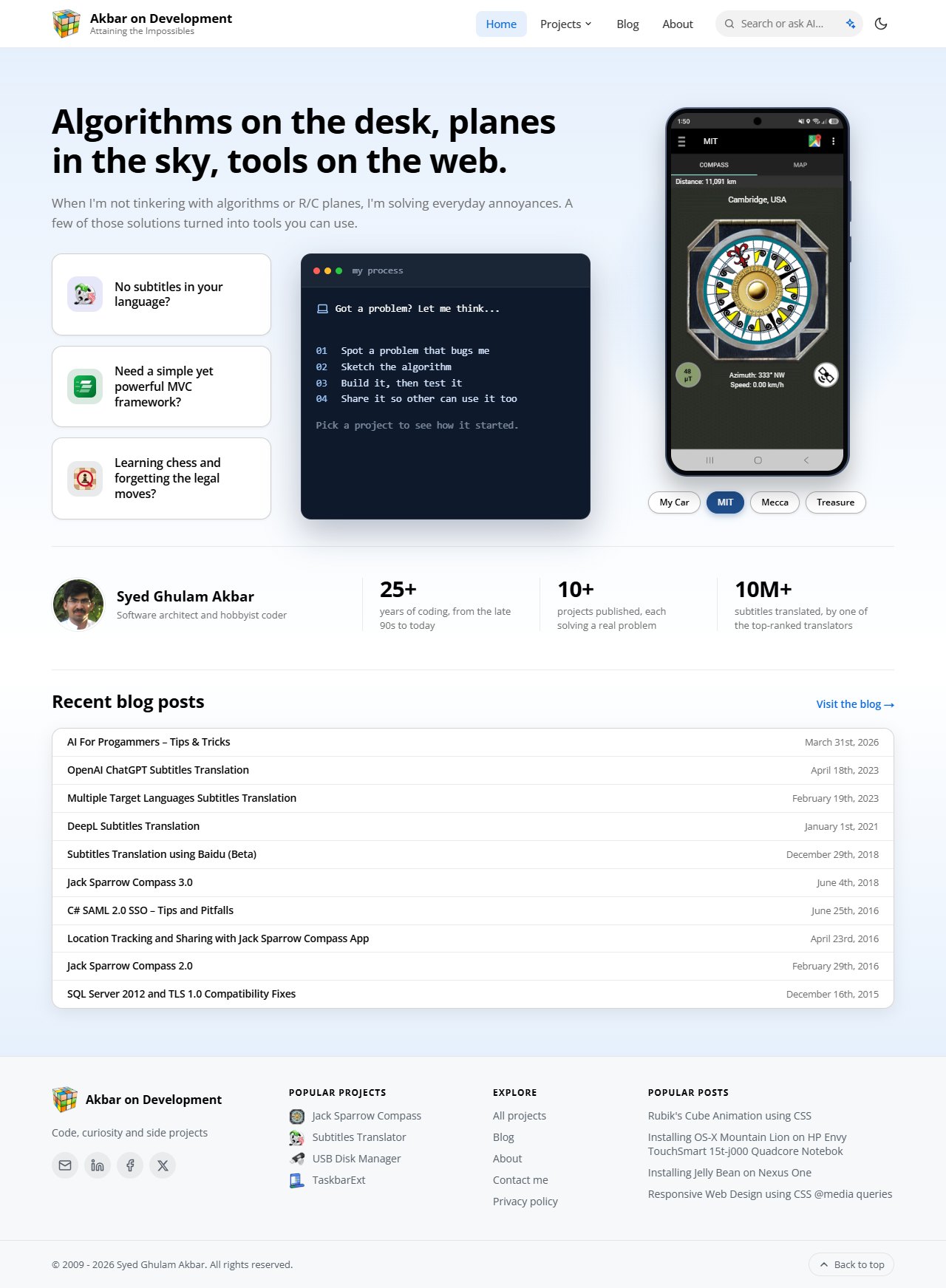
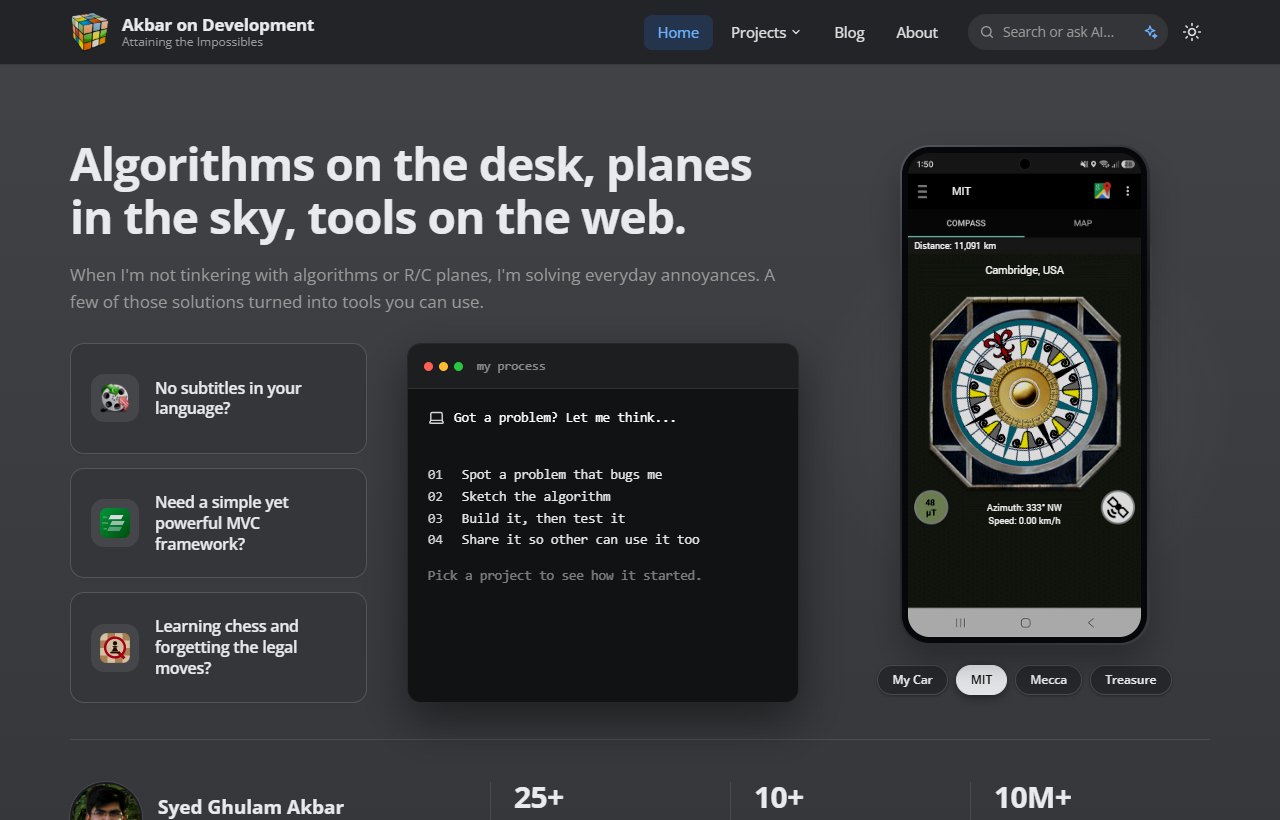
The home page: before (left) and after (right)
To be honest, I had been putting it off for years. Not because I didn’t notice the dated look, the cramped phone layout or the missing dark mode, but because redesigning a hand-rolled PHP site, a WordPress blog and a fairly complex web app is exactly the kind of project that never fits into a weekend.
In my last post, AI For Programmers – Tips & Tricks, I wrote about moving from Copilot autocomplete to letting Claude Code handle most of my day-to-day coding. This redesign was the natural next experiment: could I take a 17-year-old personal website and make it modern, with an AI agent doing most of the hands-on work, while I stayed the architect and, let’s admit it, the very picky client?
The short answer is yes. For some perspective: the last time I rebuilt this website, it took me two to three months of my free time, mostly weekends. This time it took about three weekends, and it went much further: roughly 145 files changed (+22k / −8.5k lines), more than 30 pages and dialogs were restyled, and the main site and the blog now share a single header and footer. If anything shows how AI is changing the way we build software, it’s that comparison. Here is how it went.
Why Now?
A few things finally tipped the balance:
- Phones: the old layout was designed for the desktop screens of 2010, and it showed. Menus overflowed, tables scrolled sideways, and the Subtitle Translator was painful to use on a small screen.
- Dark mode: these days I expect it everywhere, so why wouldn’t my own visitors?
- Drift: the site and the blog had their own copies of the header, footer and styles, so every small change had to be made twice, and they had slowly drifted apart.
- Curiosity: after using Claude Code at work for months, I wanted to see how far it could go on a complex, real-world, decade-old codebase with no tests and a custom PHP MVC framework.
How We Worked
I didn’t hand over the keys and walk away. The workflow that settled in after the first few pages looked like this:
1. Principles first, pages second. After restyling the first couple of pages, I asked Claude to write down the design rules we had settled on, so every later page would follow them: one accent colour, used sparingly; neutral cards so icons and content carry the colour; soft gradient heroes; hairline borders; dark mode everywhere; and share, don’t copy. That short list did more for consistency than any amount of reviewing.
2. I direct, Claude builds. For each page, I described the intent (“restyle the home page to look modern and professional”) and Claude proposed a layout and implemented it. For bigger features, it asked clarifying questions first, much like I described in my previous post.
3. It checks its own work. This was the surprise for me. Claude ran a headless browser, took screenshots in light mode, dark mode and at phone width, and looked at them before showing me anything. It caught many of its own mistakes this way: a table overflowing on a phone, a button disappearing in dark mode, a menu wrapping onto two lines.
4. Many small review rounds. Then came my nitpicks, and there were plenty. A typical one: “For the animation effect, let’s just do this for 2–3 seconds after resizing the box.” Short, specific feedback, often several rounds per page, is where “a good design” turned into “my design”.
5. Guardrails. A CLAUDE.md file in the repository holds the project rules: line endings, keep comments short, how to compress JavaScript, and, most importantly, never commit or deploy. I review every change and deploy it myself.
Before and After
Every page was redesigned, but here are a few of my favourites.
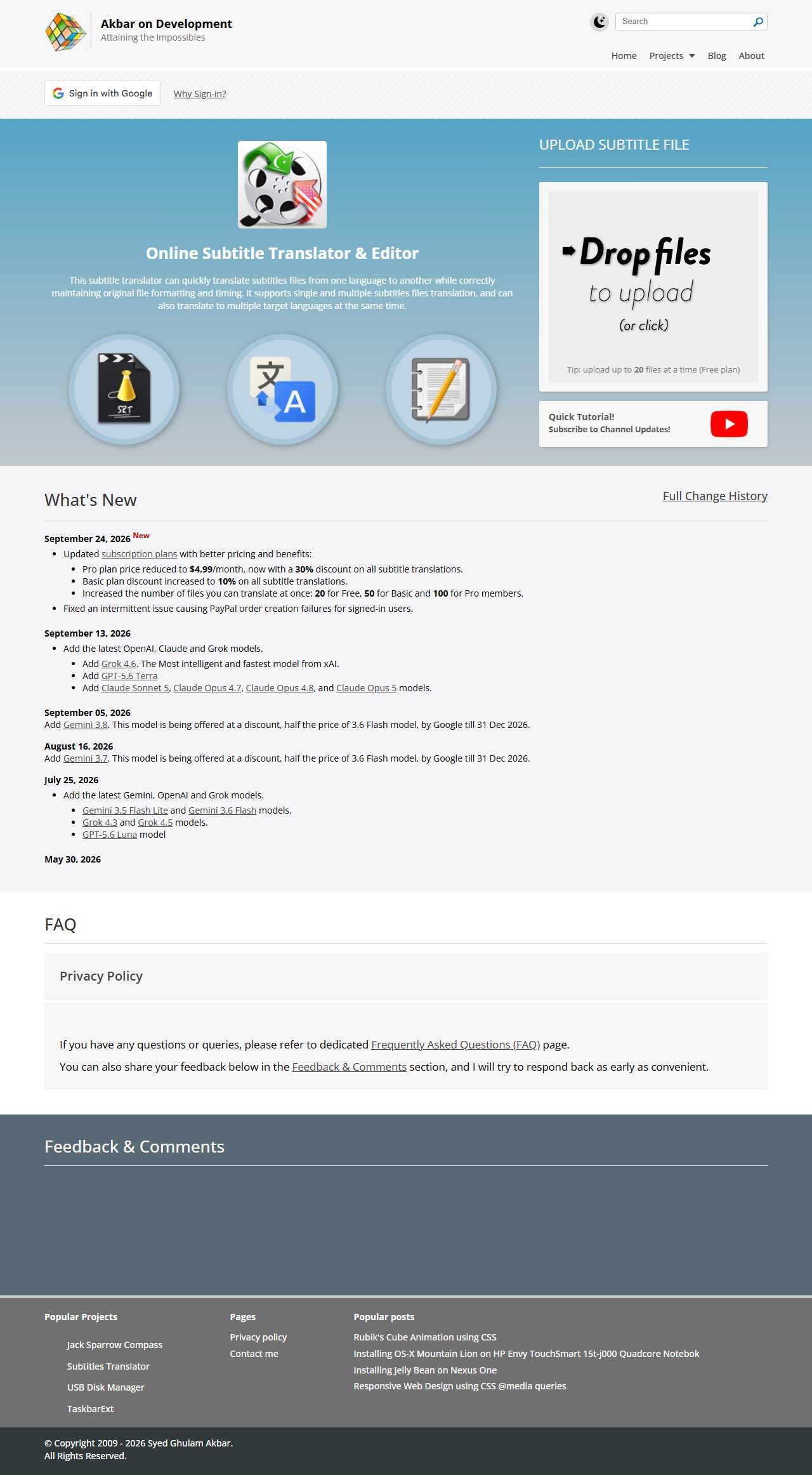
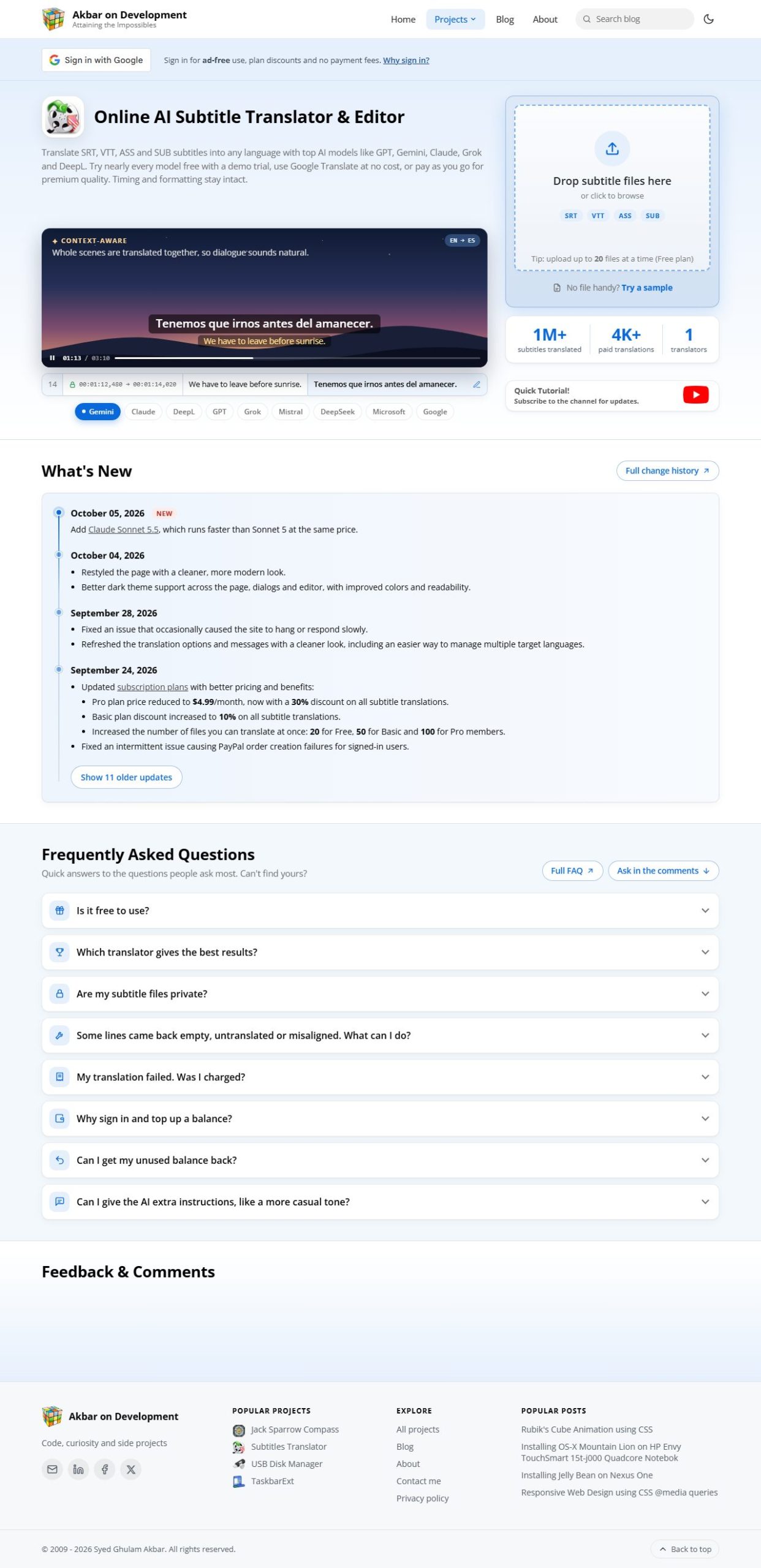
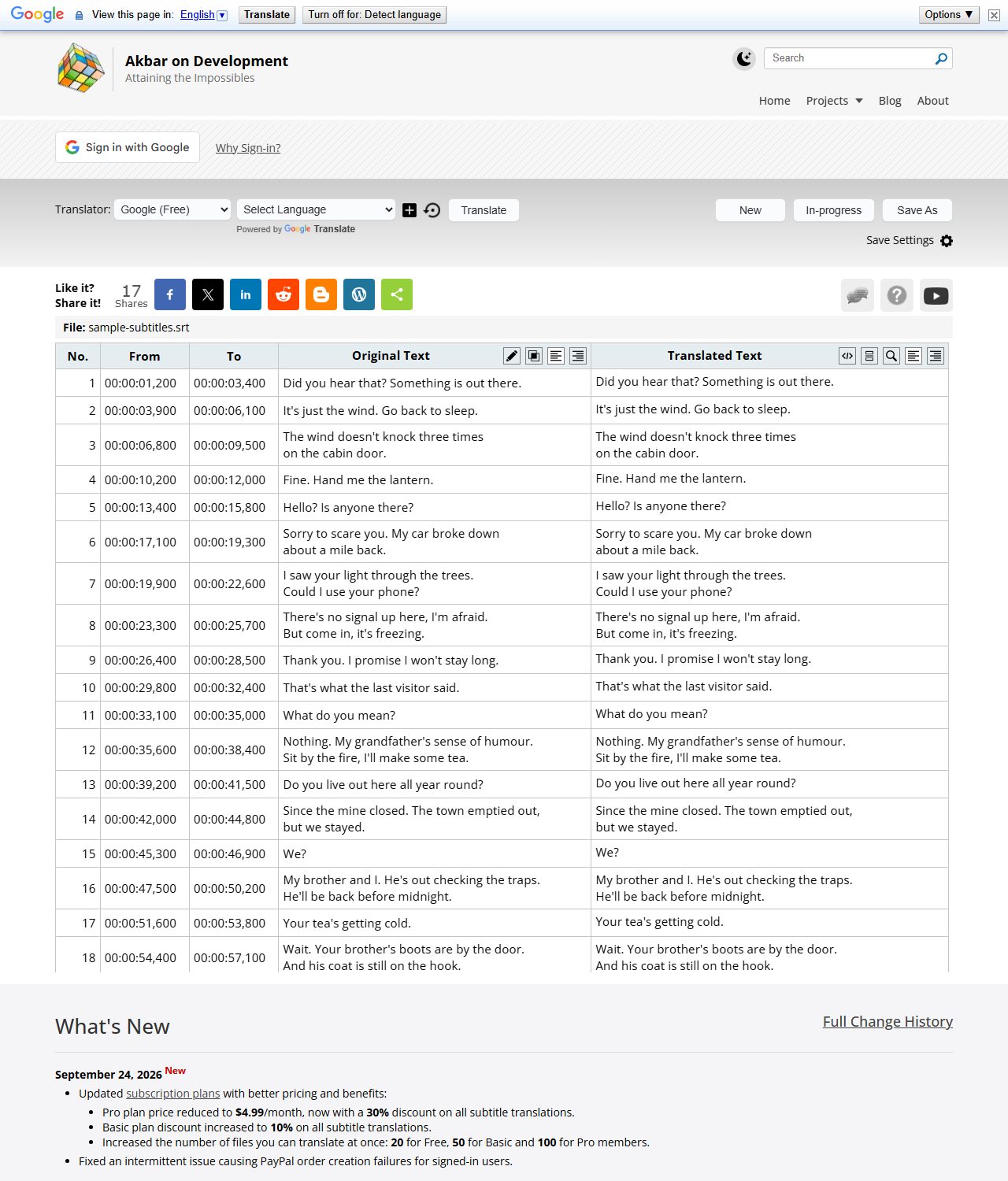
The Subtitle Translator now opens with a drop zone, the supported formats and a “Try a sample” button
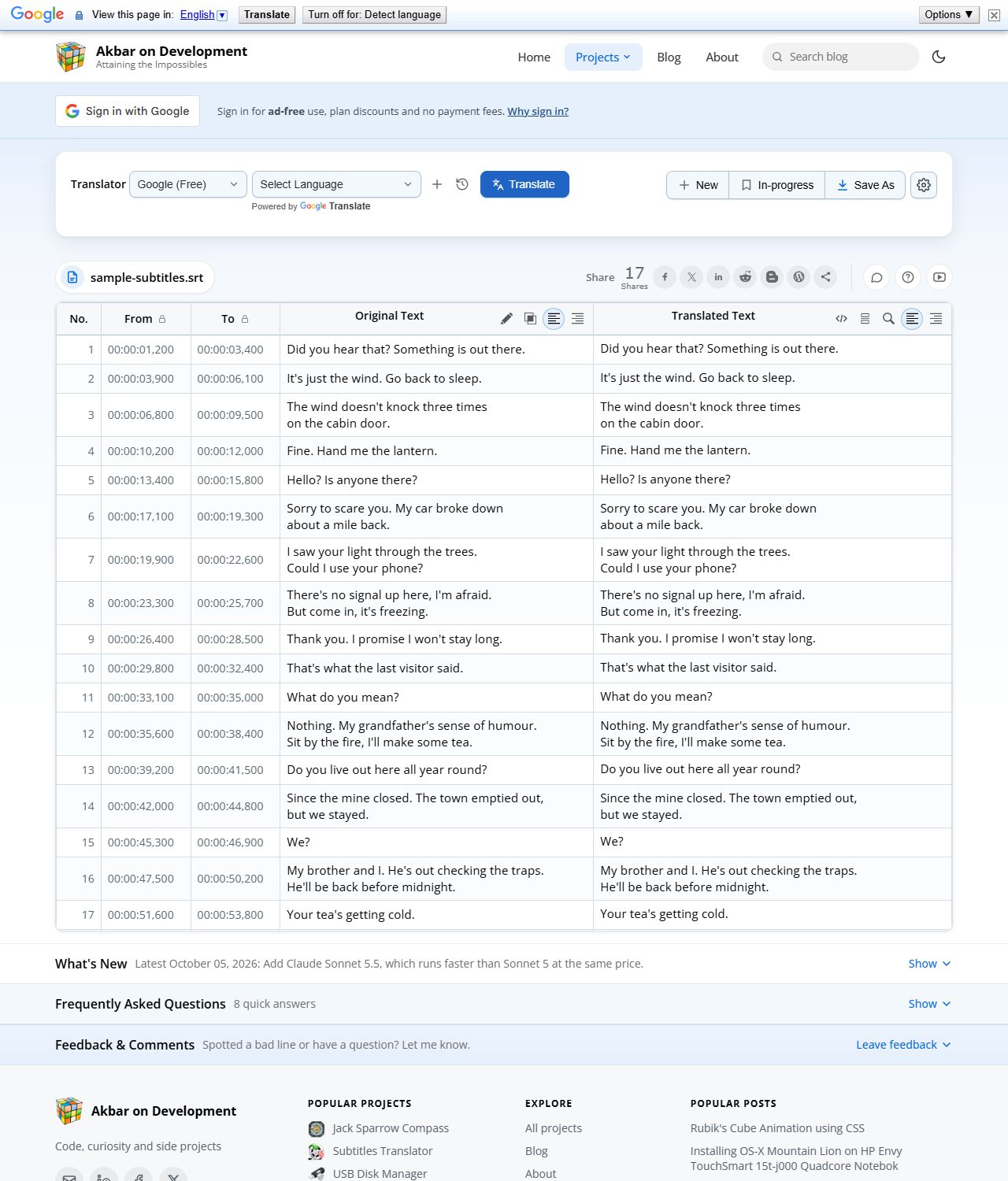
Once a file is loaded, the news, FAQ and comments fold away so the editor gets the focus
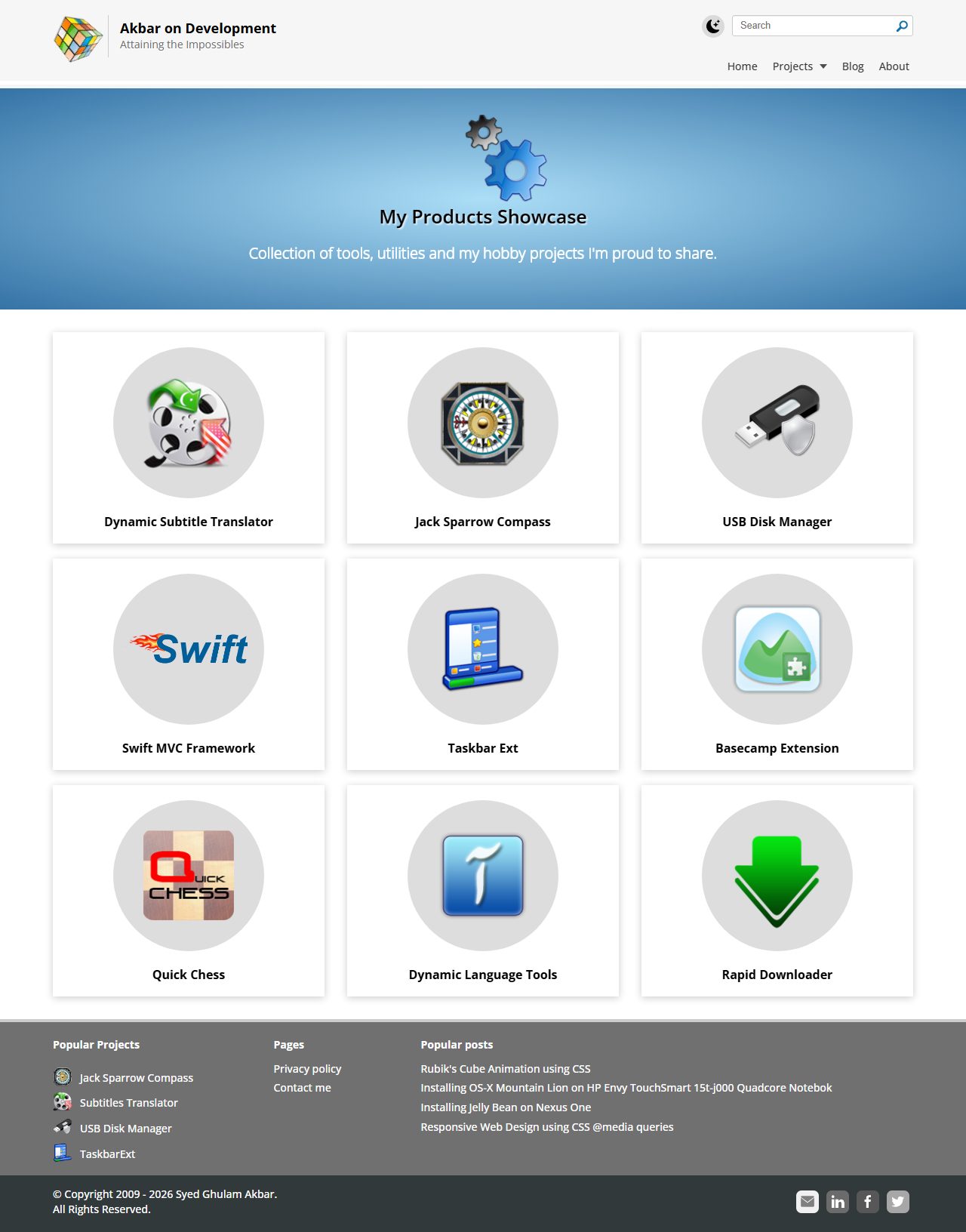
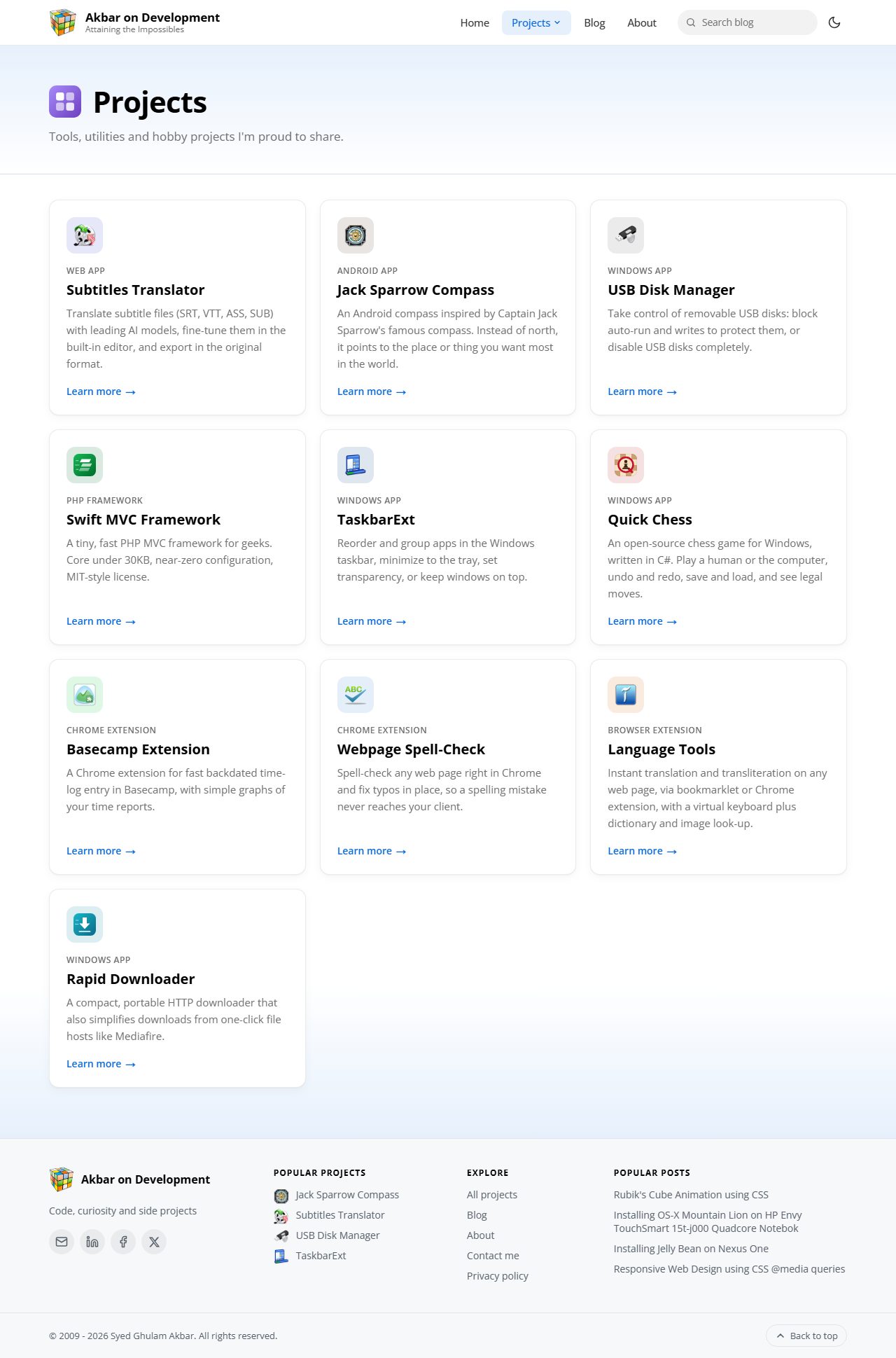
All projects: the old flip cards hid each description until you hovered; now every card shows it, with its own colour and platform tag
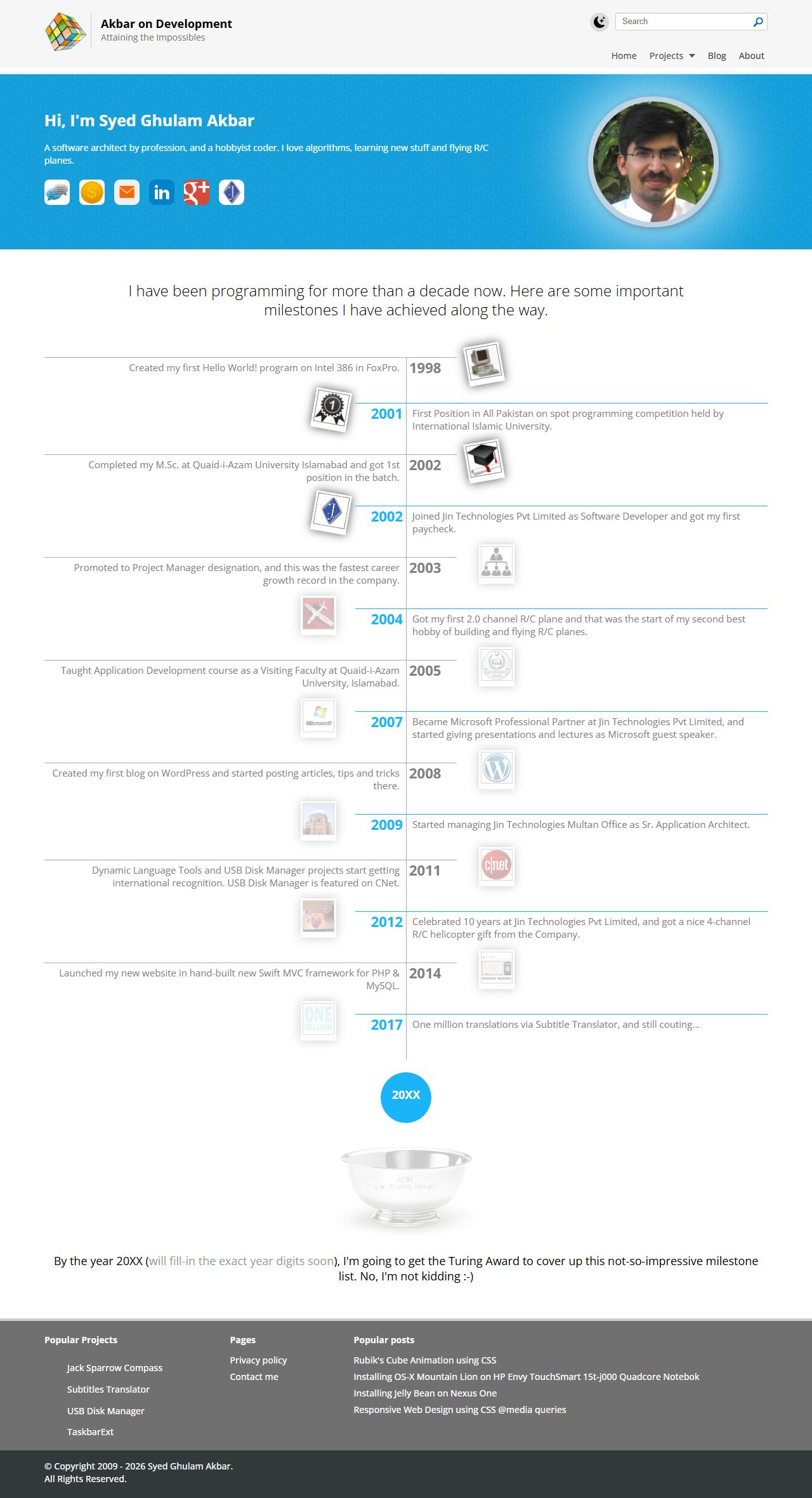
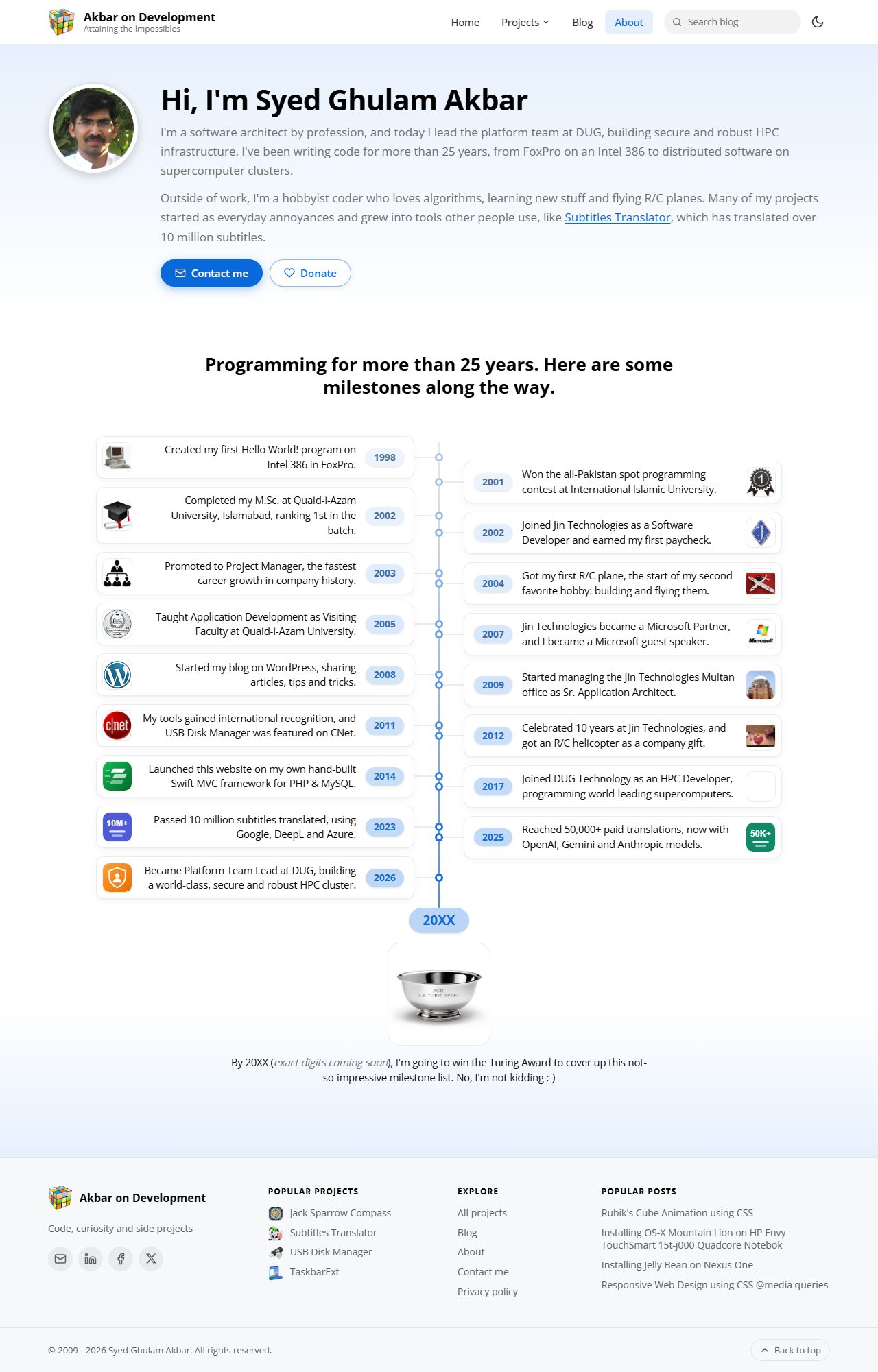
The About page, rewritten in the same hero-and-cards style
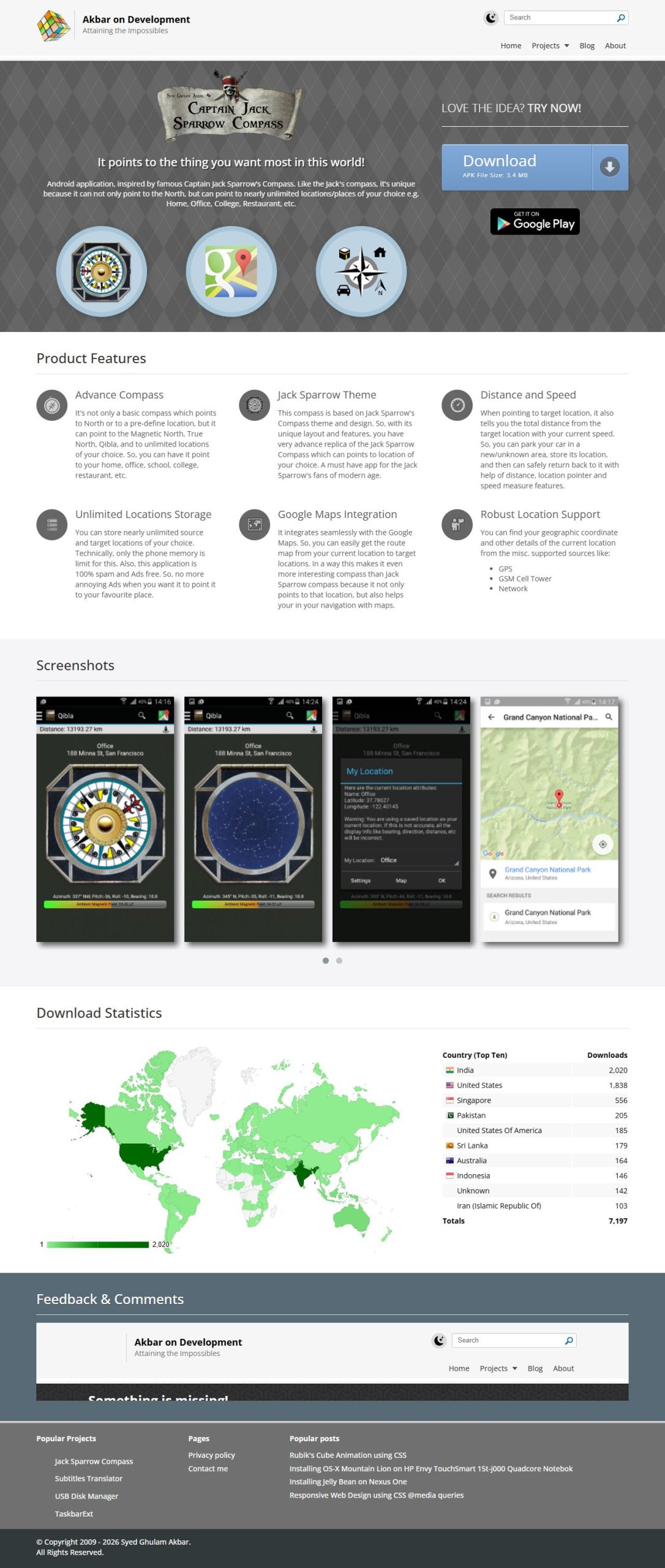
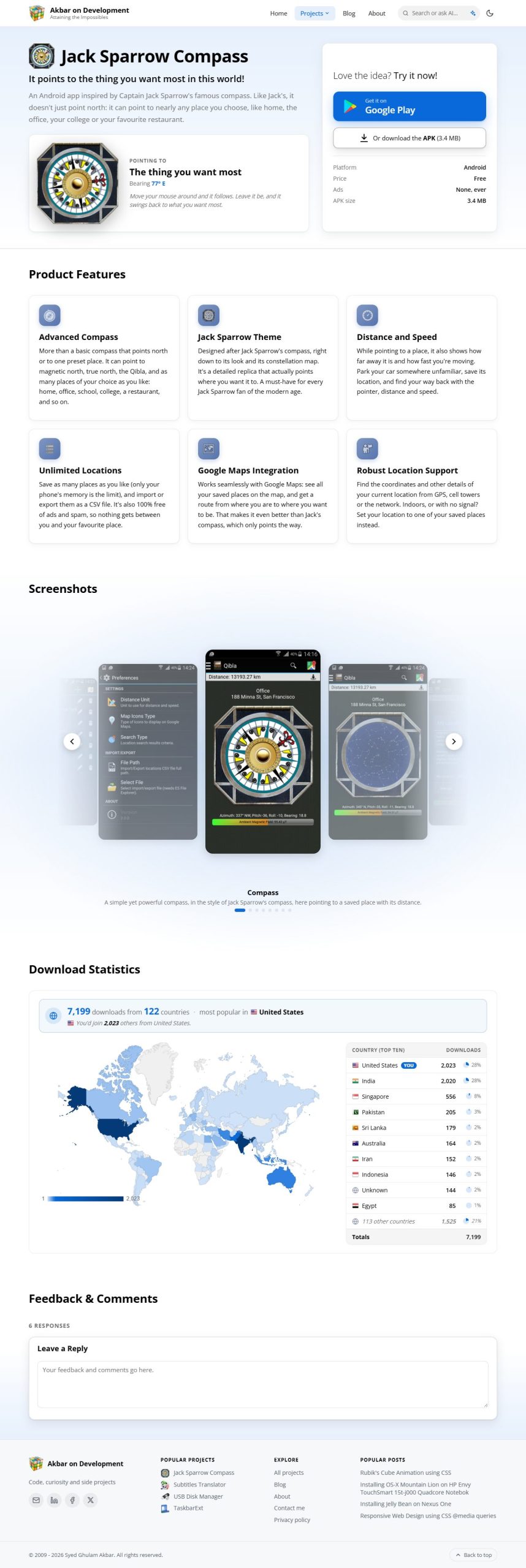
Every project page now shares one template: a hero with highlights, a download box with key facts, feature cards and a screenshot gallery
Two parts of the project pages deserve a closer look.
The screenshot gallery. A strip of four equal thumbnails became a stage: the current screenshot in the centre with a short caption, its neighbours fading out to the sides. Swipe, click or use the arrow keys.
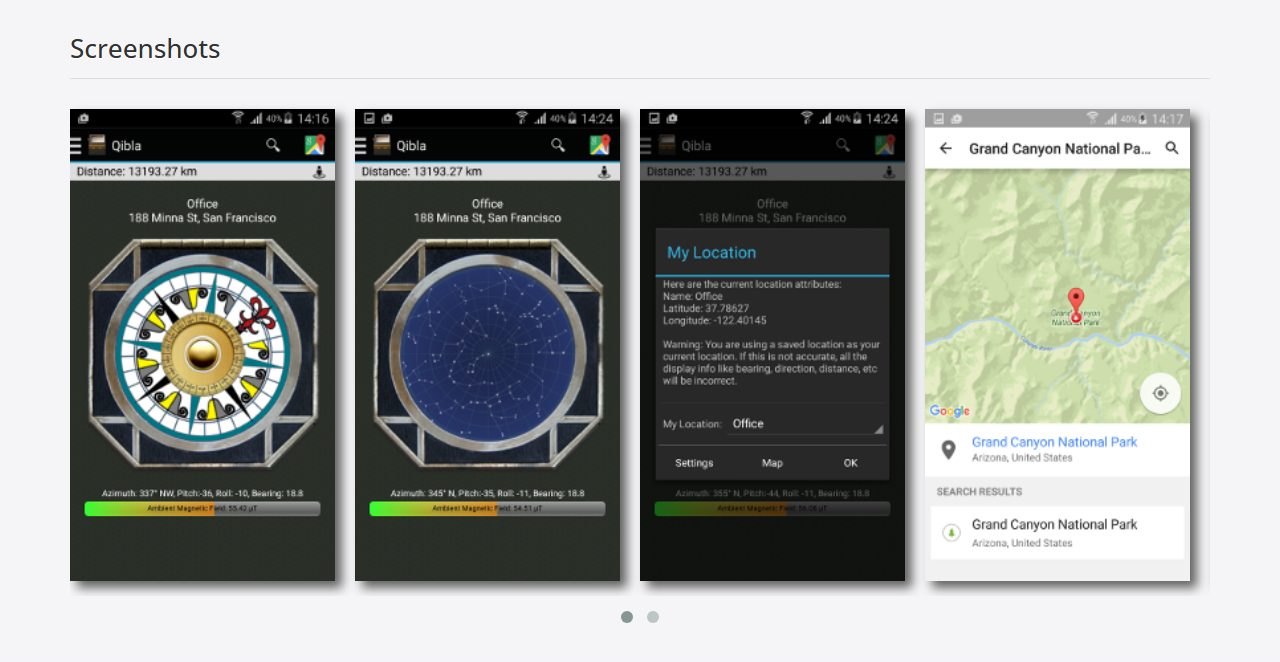
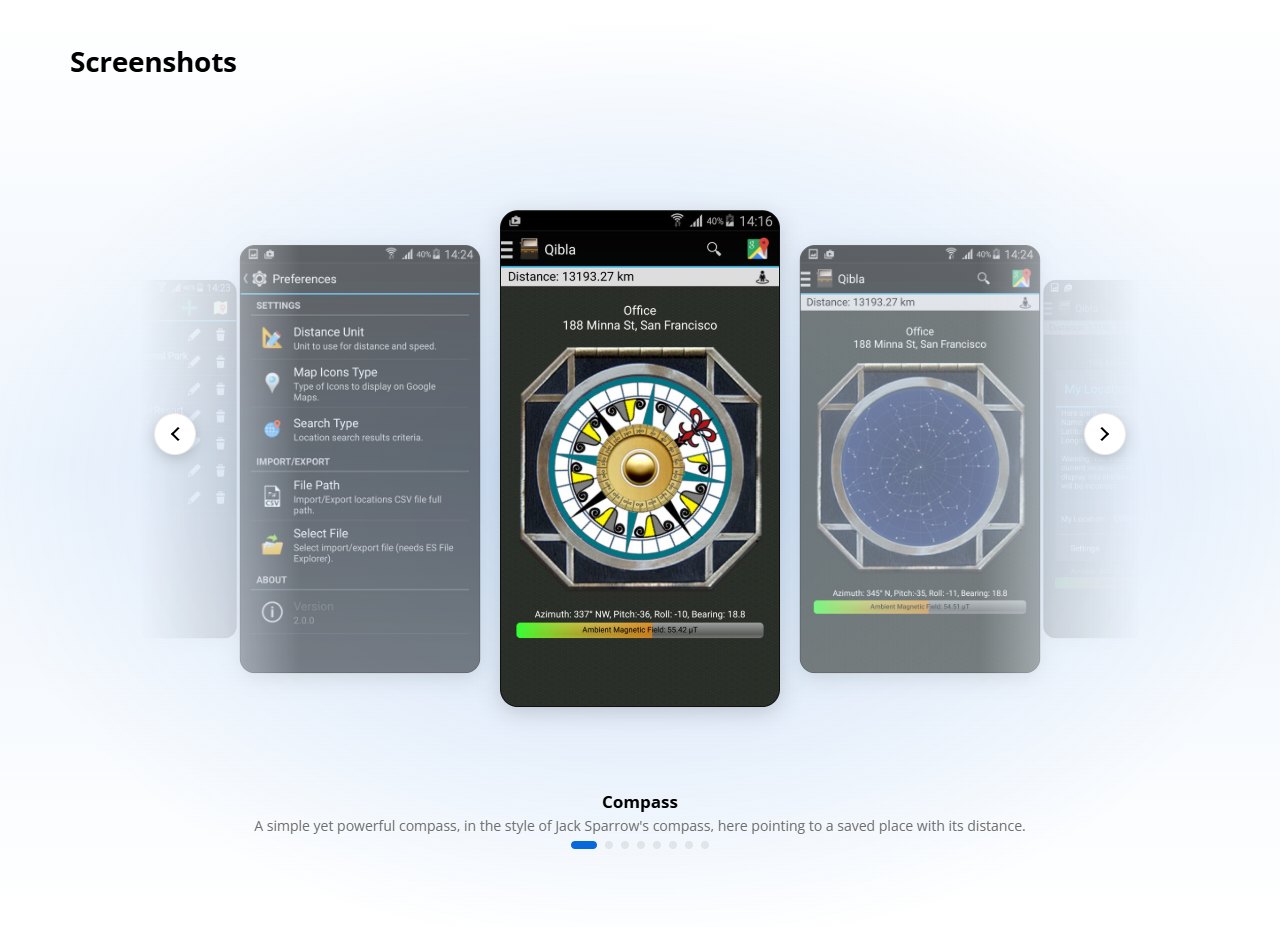
From a strip of thumbnails to a gallery with a stage, captions and swipe support
The download statistics. The same data, finally presented well: a summary up front (“7,199 downloads from 122 countries”), how many others from your country downloaded it, and each country’s share. Along the way, “United States” and “United States Of America” stopped being two different countries!
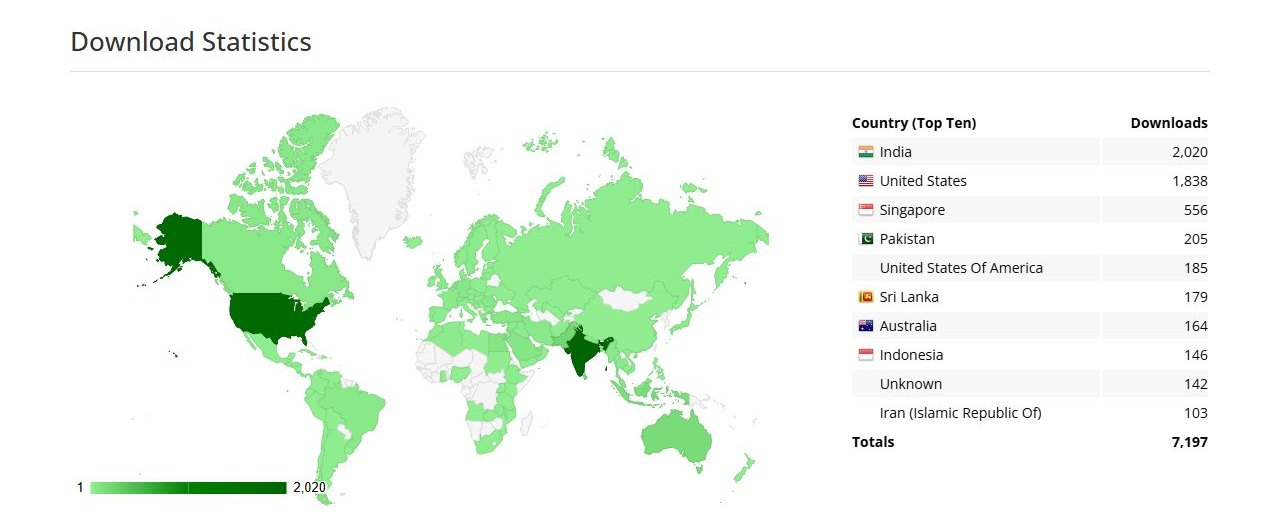
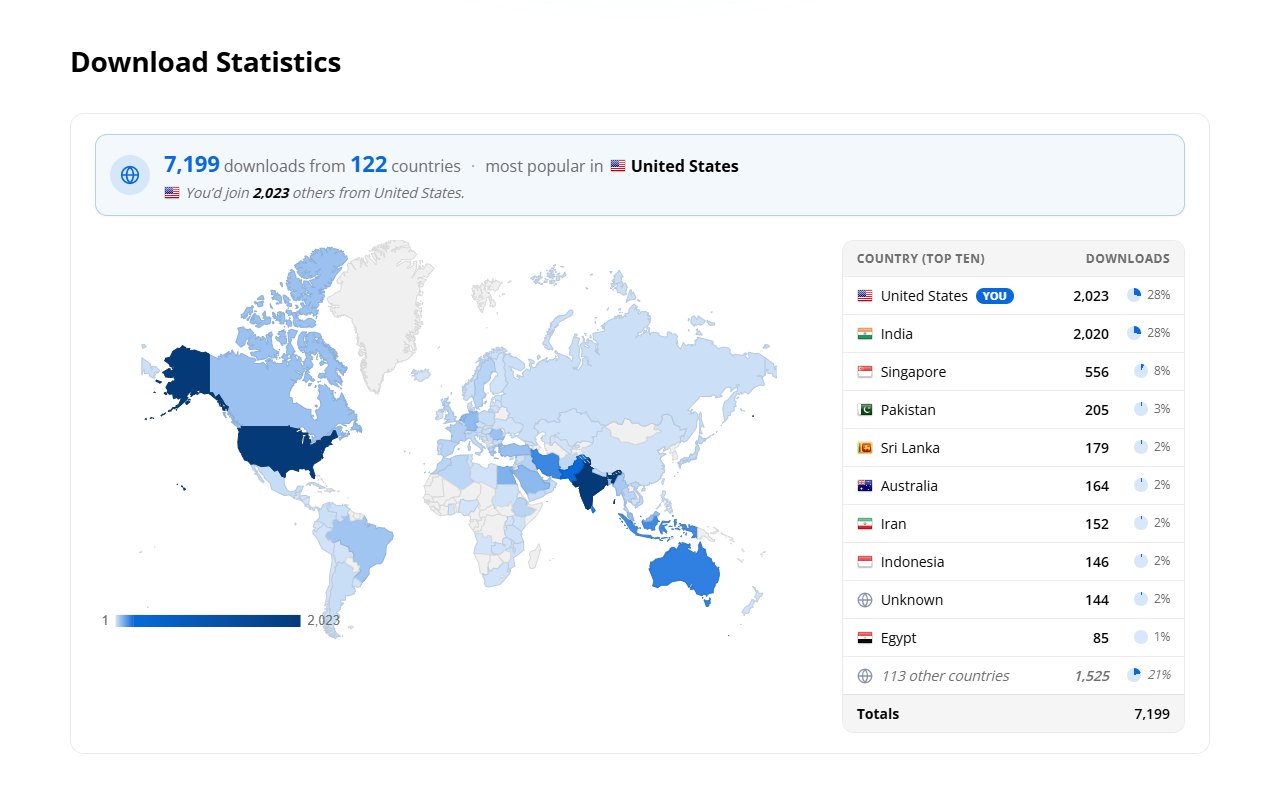
The same data, now with a summary, your own country highlighted and a share for each country
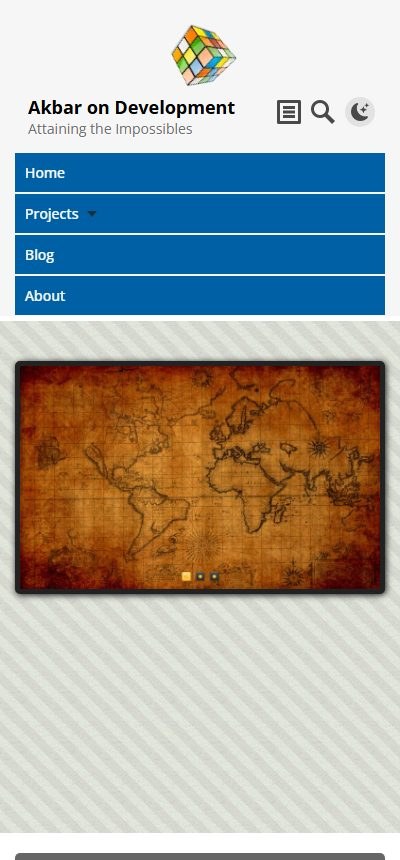
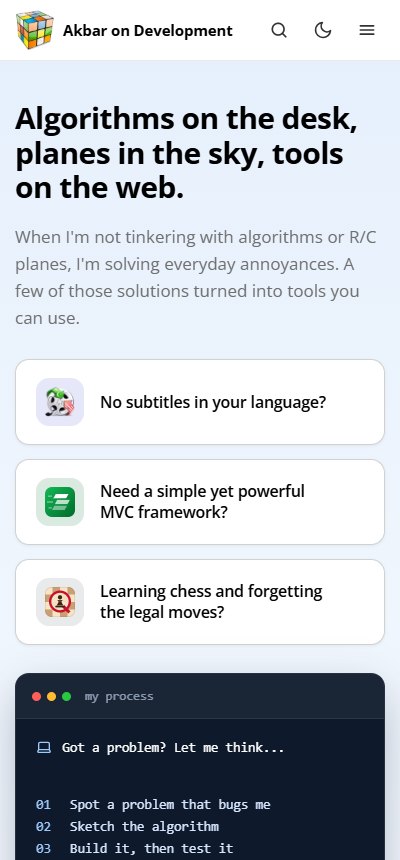
The first screen on a phone: before and after. Every page was checked at phone width
Designed for Touch, Not Just a Mouse
Making pages fit on a small screen was only half of being mobile friendly. The old site had been designed in the mouse era, and several places only revealed their content on hover. The Projects page is the clearest example: each project was a flip card showing just an icon and a title, and the description was on the back, which turned over only when you hovered over it. On a phone there is no hover, so it needed a tap hack, and most visitors probably never knew there was a description at all.
So we followed a simple rule: nothing important should depend on hover. Descriptions, labels and actions are visible by default, and hover only adds a bit of polish, like a card lifting slightly under the mouse. The interactive parts were reworked the same way: the home page’s project cards respond to a tap as well as to a hover, and the screenshot gallery works by swiping as well as clicking.
The Fun Bits
Once the basics were done, I allowed myself a few playful touches, and these were the most fun to build together:
- The flight. The home page opens with “Algorithms on the desk, planes in the sky, tools on the web”, and the hero tries to live up to it. Pick one of the problems on the left, and a “my process” terminal types out how that project started: the thought behind it, then the plan. Above the text, a small R/C plane is the progress bar: it takes off as the typing starts, follows an arc across the panel, and lands just as the last line finishes. It’s a small nod to my other hobby (the same one behind my Devo 7e post), and my favourite example of mixing interactivity with a bit of personality.
- The compass. On the Jack Sparrow Compass page, the needle follows your mouse pointer. Move it near the download button and it settles there with a “Good choice!”
- The banana. The Swift MVC page opens with an animated “AI agent” terminal: you ask for a tiny PHP site, “just a banana, really”, and watch it install the banana, then the gorilla holding it, then the entire jungle. Fans of the famous quote about object-oriented programming will get the joke.
- The cube. The 404 page is now a 3D Rubik’s cube built purely in CSS, with one piece missing. Click it, and the piece flies back into place: “Solved! If only fixing broken links were that easy.” Want to see it in action? Try a page that doesn’t exist.
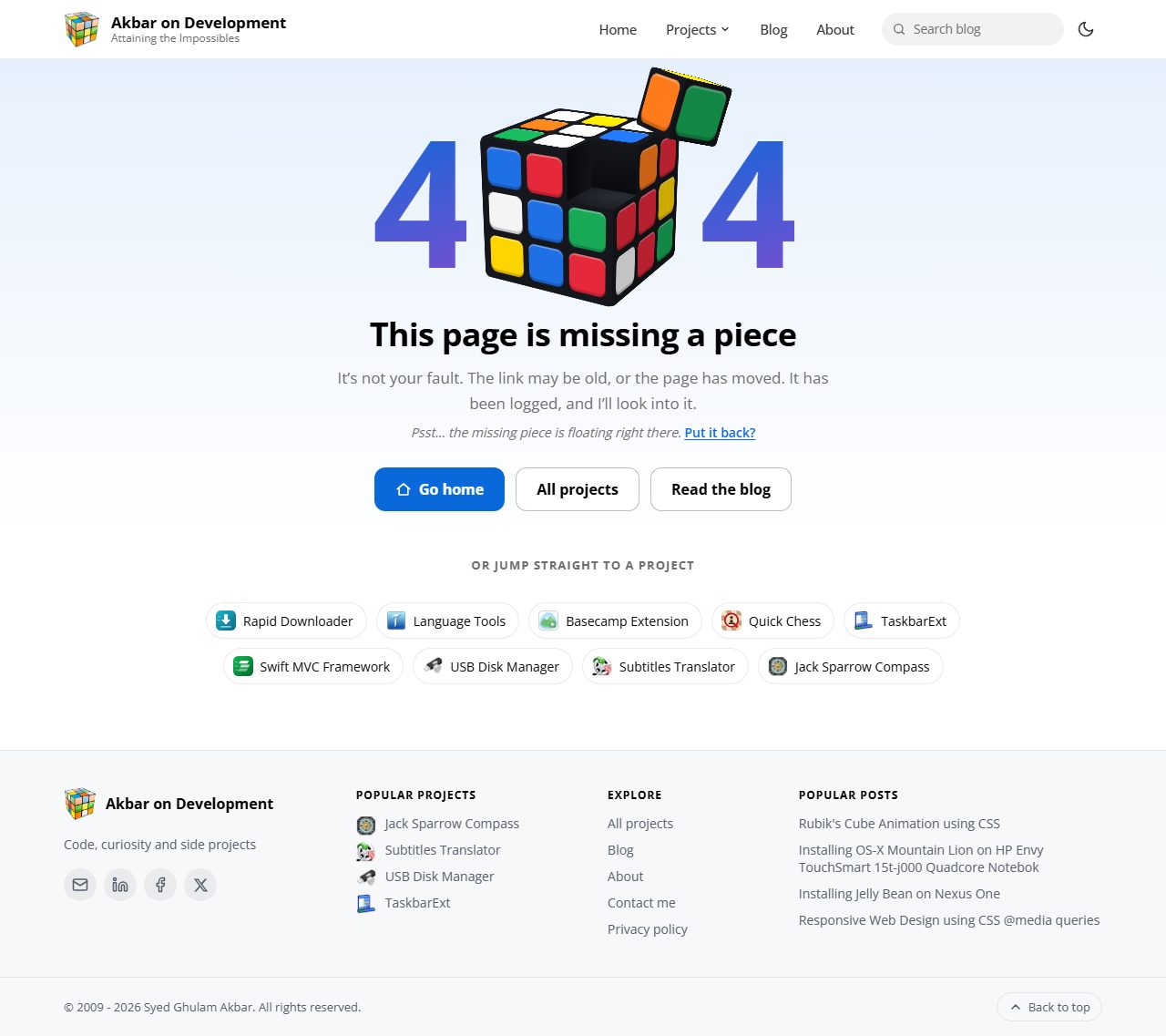
Getting these right took many rounds of small tweaks: the seams between the cube’s pieces, the hollow corner where the missing piece goes, and colours picked from the compass artwork. This is where working with an agent felt most like pair programming. I could say “the corner looks hollow, it should look solid” and see the fix a minute later.
Bugs We Found Along the Way
An AI agent doesn’t make bugs disappear, but it changes how fast you find and fix them. A few memorable ones:
- Google Translate (the in-page widget) happily translated dialog buttons and subtitle text it should never have touched.
- Splitting the Subtitle Translator’s CSS into a critical file and a deferred file quietly emptied an animation, so the loading spinner stopped spinning. Nobody noticed until a screenshot showed a perfectly still spinner.
- An “only sometimes” bug: a glowing border on the search box flashed at odd moments. Claude traced it by logging every CSS animation event and found that the animation restarted whenever an answer finished.
- A local IIS rewrite rule that returned 404 for the blog’s comment pages, and an embedded comments frame that overflowed its own resize logic.
- And there were ton mores, but the point is once you find it, it was quite easy to fix them – normally with just a sentence or two of prompt/instruction.
What Came Along With It
A redesign is also a good excuse to add a few things that had been on my list for years:
- Ask AI: the search box in the header can now answer questions about the site and my projects. It searches my pages and blog posts and answers with links to its sources. It runs on the free tiers of Gemini Flash-Lite, Mistral, Groq and Cloudflare, falling back from one to the next if one is busy. Try asking it something!
- A faster Subtitle Translator: scripts load later, the styles needed for the first paint load first, and the human check only loads when it’s needed.
- Zip uploads: drop a .zip of subtitle files, and every file inside is added for translation.
- A GitHub issue tracker: report bugs (with screenshots) and vote on feature ideas for the Subtitle Translator at github.com/syedgakbar/subtitles-translator.
Two of these show the change in pace better than anything else. Before AI agents, the Ask AI search would have taken me three to four weekends: reading up on the different AI APIs, streaming the answers, searching my own pages, rate limits, and all the edge cases. Even the much simpler zip uploads would have been a weekend or two. With Claude, each of them took a single sitting of about two hours, tests included. I spent that time deciding what they should do, not typing out how.
What I Learned
1. Taste is still your job. Claude produced good-looking designs quickly, but “good-looking” isn’t the same as “mine”. The many small review rounds were where the site got its personality.
2. Write the rules down. A short list of design principles and a CLAUDE.md file kept dozens of pages consistent across weeks of work and many separate sessions.
3. Let it see what it built. Screenshots closed the loop. An agent that can look at its own output in light mode, dark mode and on a phone fixes most of its own mistakes before you see them.
4. Small steps beat big prompts. “Make the whole site modern” would have produced something generic. One page, one dialog, one detail at a time produced something I’m proud of.
5. Keep the keys. The agent never commits or deploys. I read every change before it goes live, and I’d recommend the same to anyone trying this on a site that real people use and pay for.
What’s Next?
The new design is live, and I’ll keep an eye on what people ask the new Ask AI search, which already shows me gaps in the FAQ. If something looks off on your phone or browser, or you have an idea for the Subtitle Translator, please report it on GitHub. For anything else, the comments below are always open.
And if you’ve been putting off redesigning your own old website, maybe this is your sign. It turned out to be much more fun than I expected.
No Responses