









Subtitles Translator – FAQ
Last updated: 30 October 2026
Answers to the most common questions about the Subtitles Translator. Can’t find yours? Try the Ask AI search at the top of the page, or contact me and I’ll get back to you with a fix, workaround or answer.
Getting started Playback Quality Payments & refunds Content filters Error messages Privacy
Getting Started
How do I translate subtitles into another language?
Translating your subtitle files is quick and straightforward:
- Upload Your File: Drag and drop your
.SRT,.SUB,.ASS, or.VTTsubtitle file directly into the upload area on the main page, or click to select it from your device. - Choose Your Settings: Select your preferred translation engine from the available providers (such as Google, DeepL, Microsoft Azure, or Gemini) and pick your target output language.
- Start Translation: Click the “Translate” button to begin processing. The tool will automatically preserve your timestamps and formatting.
- Review & Refine (Optional): Once translation is complete, you can easily tweak or fine-tune individual lines by clicking the pencil icon next to any subtitle entry to open the inline editor.
- Download Your File: When you are satisfied with the quality, click the “Save As” button in the top right corner to download your newly translated subtitle file.
For a comprehensive step-by-step walkthrough with visual examples and pro tips, check out the detailed Subtitles Translator Help and Tips Guide.
Can I translate several files at once?
Yes, you can upload and batch-translate multiple subtitle files simultaneously!
- Anonymous Mode: You can upload and translate up to 20 files at once.
- Signed-In Mode: The limit increases to 100 files at once.
Simply select or drag-and-drop your batch of .SRT, .SUB, .ASS, or .VTT files into the upload area, configure your preferred translation engine and target language, and process them all in a single batch to save time.
Can I translate into several languages at once?
Yes! Instead of manually translating your file one language at a time, you can select and translate into multiple target languages in a single pass.
- Upload your subtitle file(s) (
.SRT,.SUB,.ASS, or.VTT) to the drop area. - Choose your preferred translation provider (such as Google, DeepL, or Microsoft).
- Click the option to add multiple target languages and select all the languages you want to target.
- (Optional) You can save your custom language selection by clicking the save icon at the bottom of the list so it’s ready for your next session.
- Click “Translate” to process everything simultaneously.
Once complete, you can review and edit each language individually via the dropdown above the translation area, and conveniently download all your translated files together in a single ZIP archive by clicking the “Save All” button.
For a complete walkthrough, check out the Multiple Target Languages Subtitles Translation Guide.
Playback Issues
Punctuation shows at the wrong end of the line in Arabic, Persian or other RTL languages
When translating into Right-to-Left (RTL) languages, media players like VLC sometimes misinterpret text direction if bidirectional formatting codes are missing, causing punctuation marks to jump to the front of the sentence. To fix this, make sure to check the “Embed Language Bi-Directional codes” option under your Save Settings (located right under the “Save As” button) before downloading your translated subtitle file.
Accented or non-English characters show as boxes, question marks or strange symbols
This is almost always an issue with text file encoding rather than the translation itself. Subtitle files containing non-English characters must be saved using UTF-8 encoding. Dynamic Subtitle Translator outputs files in standard UTF-8 format by default. If your media player still displays garbled text, check your player’s subtitle settings or preferences to ensure its default text encoding is set to UTF-8 (rather than ANSI or Western European).
Translated subtitles are out of sync with the video
The translation tool strictly preserves the exact timecodes (.SRT, .VTT, .ASS, .SUB) from your original source file. If your subtitles are out of sync, it usually means the source file itself was timed to a different video release (such as a different frame rate, a Director’s Cut edition, or a WEB-DL vs. Blu-ray release). You can fix minor timeline discrepancies using your media player’s built-in subtitle delay/sync adjustment keys (for example, the G and H keys in VLC) or by using a dedicated subtitle timing tool.
Translation Quality
Which translator (Google, OpenAI, Gemini, etc) is best for subtitles?
This is such a simple and basic question, but the answer, unfortunately, is not that straightforward. You can probably guess this because I’m already offering more than six translators on my website. If I knew which one is the “best” translator in all scenarios, I would have removed the rest of these already 🙂
At least part of the answer is comparatively easy. In the majority of cases, paid translators (DeepL, ChatGPT, Gemini, etc.) will do more natural, accurate and contextual subtitle translation. But then you can’t beat the free translators by price as these are Free!
When it comes to paid translators, especially the new LLMs (ChatGPT, Gemini, DeepSeek, etc.), answering this gets even more complex. As most of these engines also support “model” choices, whereas the newer (and more expensive) models promise to bring in more natural and context translations compared to the older ones. Another complication is the way these model works, as these can not only perform better or worse translation for some language pairs but vary greatly on blocks of text as well.
So, as an end-user, where does this leave you? I think the best answer is probably “Try it yourself!”. Nearly all the paid translators and their models, offer a demo/trial mode, where you can translate up to 50 lines free of charge. To try this out, you can upload a subtitle file, choose translator and select Translation Type as “Free”. You can then see which translator seems to work best for the language pairs of your choice.
As far as my input is concerned, I find the Gemini model to be the best for my native language translations. However, here is how the translation data of my website looks for July to October 2026:
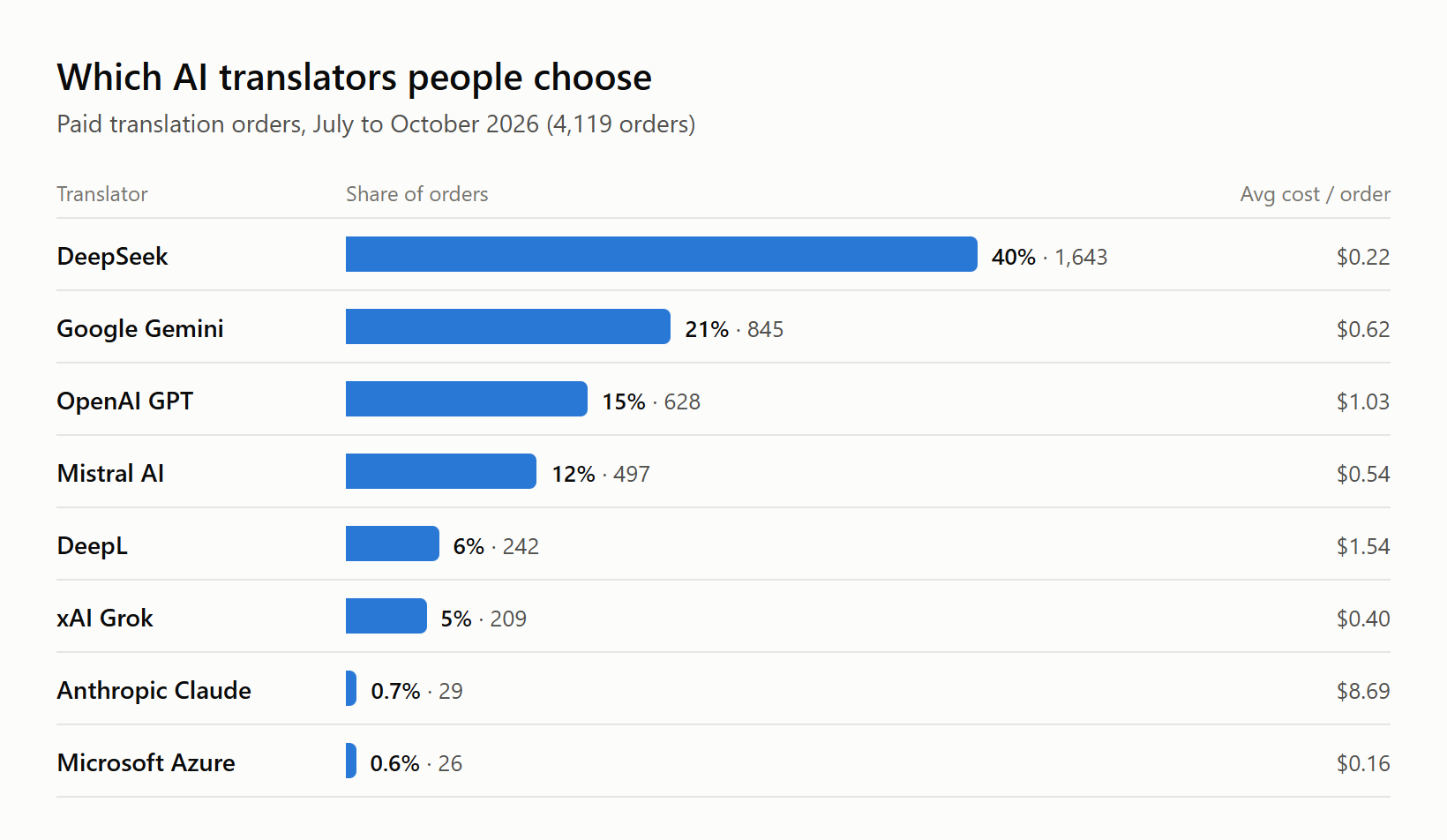
This tells us that the budget-friendly models are the most popular on my website: DeepSeek alone accounts for 40% of the orders, followed by Gemini, GPT and Mistral. Popularity mostly follows price, though. DeepL and Claude cost more per order, so they’re picked less often, even though they’re excellent for many language pairs. Translation quality also varies by language pair, so a less popular translator may well be the best one for yours.
I know that it’s not a clear or simple answer, but hopefully, this still leaves you in a slightly better position than before.
The translation finished, but some lines are empty, untranslated or misaligned
This is normally a problem when using LLM-based translators like OpenAI ChatGPT, Gemini, etc. I have rarely seen this problem in DeepL or Microsoft, but that’s probably not the best answer. Before I tell you how to best fix this, probably it would be better to first let you know what’s going wrong here in the first place.
As you may know a subtitles file has not only text (as displayed on screen), but sequence markers, timing information and many other styles meta-data. Now to get accurate, natural, and contextual translation, the subtitle file is not passed to the back-end translation engine as is. Instead, the translator performs a clean-up step first, where all this extra meta-data is stripped from the subtitles and only dialog texts is split into paragraphs of text – more like a story or novel. The translation on this type of next brings is more natural and contextual translation.
Now obviously, once the translation is done, we need to have some way to reverse map the translated text to the original meta-data. This, during the clean-up, the translator also embeds some XML position marker tags in the source text paragraphs. The translation prompt/instruction then used to pass this data to external models tells it not to touch/remove these position tags and keep these as is in the translated text.
However, due to the inbuilt randomness in the LLM engines and probably also based on the fact that what type of data these are trained on, rarely do these AI engines remove/delete these positional tags nevertheless from the translated text. Now when this happens, it makes it really hard for the reverse-mapper algorithm to calculate where to place/split translated, so based on how many and where the position tags were removed from the translated text, you see side effects like:
- The line is not translated i.e. showing the source text
- The translation line is blank/empty
- Translation line or a block of lines are misaligned.
While I have experienced that newer AI translation models, like Gemini 2.0 or Chat-GPT 4o, are not only better in translation quality, but rarely remove these positional tags and thus don’t show these symptoms. But nevertheless, it happens from time to time. And probably is also the reason you are reading this section.
Now when this happens, and the automatic recovery algorithm also fails to correct this properly, the only workaround is for you to fix this manually. To facilitate and speed up this manual fixing process, I have developed the following two tools in the online editor:
- Shift a block of subtitle rows up/down. Learn more…
- Re-translate a block of lines – free of cost. Learn more…
With the help of these two tools, you can hopefully quickly fix translated subtitles, if only part of it got damaged. However, if the translation is totally rubbish and beyond quick repair. Please just report this back to me and I will issue a full refund for that translation order.
If the untranslated lines are highlighted and listed in a note after the translation, they were blocked by the AI model’s content filter instead. See A few lines were left untranslated and highlighted.
Payments & Refunds
My paid translation failed with Unfortunately, the translation process failed… Can I get my money back?
The translation can fail due to a ton of issues in the middle – it could be a problem with the translation API I’m using (OpenAI, Gemini, DeepL, etc) or it could be a problem on my website (under too much load). In 90% of the cases, these errors are transient and there are good chances that if you just re-try the translation, it will work.
But, importantly, you are never charged for a failed translation with a server-side message like the above one. If you were paying using PayPal, there are good chances that the amount is never deducted from your account in the first place and you can confirm this by looking at the Transactions Activity directly in your PayPal account. The same is the case for the translations using Balance credits – the account is charged only after successful translations.
However, if that’s not the case and your money was still charged either from your PayPal or Balance account due to any failure, please report your order number or filename to me and I will try to get back and resolve this issue ASAP – with full refund in 99% of the cases.
Payment failed with The instrument presented was either declined…
PayPal or your bank declined the payment method, so no payment was taken. If you were paying by credit card, try your PayPal balance, a linked bank account or another card. Alternatively, sign in and top up a balance, then pay for translations from it.
Translation failed with This payment is different than what is needed…
The price was calculated before a change, such as a different model, options or file, so the amount paid no longer matches the cost of the translation. Click Calculate Cost again and pay the updated amount. If you were charged for the mismatched payment, contact me with the order number and I’ll refund it.
Retrying failed with Maximum re-try limit exceeded for this order
A failed order can be retried for free up to 4 times. After that, the same order can’t be retried again, because repeated failures usually mean the file or settings need changing rather than another attempt. Try a different model or Translation Mode as a new translation, or contact me with the order number if you need help or a refund.
Content Filters
Translation was blocked with doesn't comply with usage policies, PROHIBITED_CONTENT or a similar error
Full messages look like:
- This content doesn’t comply with OpenAI’s usage policies and thus can’t be translated.
- Translation was blocked by Gemini because the response was flagged for containing prohibited content.
- Translation unexpectedly failed with reason: PROHIBITED_CONTENT.
- Subtitles translation failed due to safety reason. This content doesn’t meet the Gemini safety guidelines.
- Content violates usage guidelines. (xAI)
AI providers like OpenAI, Google Gemini and xAI run their own safety checks on every request. Subtitles with explicit sexual content are often refused, and anything that could involve minors is always refused. This isn’t a temporary error, so retrying with the same model gives the same result. Translating adult content isn’t supported. I can’t override provider safety policies, and content involving minors won’t be translated by any of them.
But my subtitles aren’t sensitive. These filters can be strict, and sometimes flag a whole file over a single word or sentence, like one threatening line flagged as violent/threatening. There’s no way to bypass them from my side. You can rephrase the flagged lines, or try another translator, as each provider’s filter is different.
If only a few lines are blocked, the rest of the file is still translated. See A few lines were left untranslated and highlighted.
A few lines were left untranslated and highlighted. Am I charged for them?
AI models like Claude, OpenAI and Gemini sometimes refuse to translate a few lines because their content filter flags them, often over a single word or phrase. Rather than failing the whole file over a handful of lines, the translator finds exactly which lines were blocked and translates everything else. The blocked lines are kept in their original language, highlighted in the editor, and listed (with their timings) in a note shown after the translation. You can then translate or rephrase them yourself in the editor.
This only applies when a small part of the file is blocked: up to 5% of its lines, and never more than 20 lines per file. If more lines than that are blocked, the translation is stopped with an error listing the blocked lines, and you’re not charged.
How is this charged?
- Balance: when you pay with your account balance, you’re only charged for the lines that were translated. The skipped lines are deducted from the file’s price automatically.
- PayPal or card: these payments are taken upfront for the whole order, so skipped lines aren’t refunded automatically. As it’s at most 5% of a file, the difference is usually very small, but if you’d like a refund for the skipped lines, just send me your order number.
If you’d rather have a file translated in full or not at all, turn off Skip Blocked Lines in the model settings (the gear icon next to the model). The translation will then stop at the first blocked line, as before.
Gemini failed with Translation unexpectedly failed with reason: RECITATION
Gemini stops a reply when it closely matches copyrighted text it has seen before, such as famous song lyrics or well-known film scripts. Retrying with Gemini rarely helps. Translate the file with another AI provider, such as GPT, Claude or DeepL.
Error Messages
Translation failed with reason: length (or MAX_TOKENS, incomplete)
The AI model hit its maximum reply length before it finished a batch of lines. This usually happens when the model gets stuck repeating itself, or when the lines are unusually long. It’s often temporary: click Re-try Translation to try again at no extra cost. If it keeps happening, look for long lines with repeating words and see if you can edit them to remove the duplication. Changing the temperature value for these subtitles also usually helps.
Translation failed with Your current session has expired
For security, a signed-in session lasts about 3 hours. If it expires while you’re preparing a translation, the request is rejected before anything is charged. Refresh the page, sign in with Google again and click Translate.
Translation failed with Translation doesn't seem to be working correctly…
Most of the lines (over 75%) came back unchanged, so the model didn’t really translate them. The usual causes are:
- the wrong source language is selected
- the file is already in the target language
- the model doesn’t support that language pair well
Check the source language, then try another translator or model. If the lines are meant to stay unchanged, for example a file that is mostly names or numbers, you can turn this check off with the Skip Validation switch in the model settings.
Translation failed with Model is currently overloaded, Rate limit exceeded or similar
The AI provider is temporarily busy and rejected the request. Messages like at capacity or Service unavailable mean the same. The translator already retries automatically for a while before showing this. Wait a few minutes and try again, or pick a different model or provider.
Translation failed with Majority of the subtitles lines were not translated…
More than half of the lines came back empty. This happens when the model loses track of the hidden markers that map each translated line back to its subtitle. Change the Translation Mode to Structured or Per-Line and translate again. Both keep lines aligned more strictly than Paragraph mode.
Privacy
Are my uploaded files stored on your servers?
No, your files are not stored permanently. However, storage duration depends on your account status:
Signed-In & Paid Users: To provide greater convenience and easy re-downloads, your translated files are securely stored on our servers for up to 30 days. You can access or clear them anytime within that window.
Anonymous Users: Files and translations are kept temporarily only for the duration of your session to allow you to download them, after which they are promptly removed.
Is my content shared with the translation providers?
When you choose a third-party translation engine (such as Google, DeepL, Microsoft Azure, or Gemini), the text from your subtitle lines is sent securely via API to that specific provider strictly to generate the translation. None of your private subtitle content is normally used to publicly train any commercial AI models or shared with unauthorized third parties. However, it’s always good to read the providers’ own privacy policies.
If you are not sure about any of these, please feel free to ask and I can provide more details.
Is it safe to translate private or copyrighted subtitles?
Yes, transmissions between your browser and the server are fully encrypted using standard HTTPS/TLS protocols. However, because machine translation relies on external cloud APIs, you should avoid uploading files containing highly sensitive personal data, corporate secrets, or restricted unreleased media if your project requires strict enterprise confidentiality.
Note: When uploading any subtitle file, you are solely responsible for ownership and permission to apply translation on the uploaded file. If you are not the copyright holder of the subtitle file, please check with the owner for permission before uploading or translating them.