









Why Sign-in and Topup Balance
Why Sign-in?
Let’s start with the first and most important question – “Why Sign-in”? First of all sign-in on the Subtitles Translator is still optional and you should be able to do almost everything you were able to do before the introduction of this sign-up feature. I’m not here to steal or misuse your personal profile or data.
I only introduced this sign-in concept to support the “Top up Balance” feature (more on this later). But now that it’s here, there are some immediate perks. Like you don’t see those (annoying?) Ads – if you just keep a credit of up of $2. Plus a signed user can also access his/her past paid translations.
Even though this past translation management is only available for paid translations at the moment, as the infrastructure is now here, I may open this for free translations as well in near future. The current limitation to opening this to only paid translation is not by design/architecture but has more to do with the overall website hosting cost.
Why use Google Sign-in?
Well, the key reason here was that I didn’t want to implement another identity management system on my end. Which always inherits the risk of vulnerabilities and security exploits. This also means you don’t have to create or remember another username/password to sign in to my website.
So is this Google Sign-in secure? Yes, I think it’s almost as safe as your Gmail or Banking website. For technical savvy persons, I’m using Google Identity Services, which is based on open standards and pretty secure.
Subscription Program
Our subscription program is designed specifically for our most frequent users. Beyond “quality of life” improvements—like an ad-free experience, more parallel files, and extended file retention—the primary benefit up to 30% discount on all translations. For regular users, these savings are designed to fully offset the cost of the subscription itself.
Nothing is being taken away. Free-tier users will continue to enjoy on-demand pricing with no transaction fees when using a loaded balance.
This optional program supports both the developer and the community. For me, it provides a steady stream of income to better maintain and scale our hosting infrastructure. For you, it offers a way to significantly reduce your per-file costs while enjoying a cleaner, faster experience.
Profile Privacy
So if you use your Google login to sing-in to my website, does that mean I can also access your emails or Google application? Well, not at all. That would be a pretty stupid exploit of service from a reputed company like Google.
In fact, the only profile data I get from Google after you sign-in is is your “Email”, “Profile Picture” and “Full name” along with some other non-personal attributes related to the sign-in process. And I can’t use this in any way to access your Gmail or other Google apps. Again, if you are interested in learning more about what exactly is shared, I will recommend going through Google Identity Service reference documents.
Why Top up Balance?
Hopefully, I have you convinced so far that the Sign-in to my website using Google is benign and doesn’t have any risk associated. But why should you top up the balance? Isn’t it all right to just pay on demand by PayPal? Yeah, of course, it is, and that one is still supported.
But the thing is that when you pay using PayPal, the payment also includes a fixed transaction fee and also a processing fee from PayPal. Which for some small translations is often more than the cost of the actual translation (paid to Translation API providers).
So the idea is that with top-up balance mode, you can load the balance once and then use it to pay for your future translation. This way you are not paying for the payment gateway processing fees for each transaction. Thus reducing the overall translation cost per file.
For example, for a small translation file of a few dozen lines, if the payment cost via PayPal is $0.12, you will be just paying around $0.04 using a pre-loaded balance. Plus the overall experience is improved as you don’t get redirected to the PayPal website for payment authorisation.
How to Top up Balance
Loading a balance to your account is quite straightforward and somewhat similar to paying for a translation using your PayPal account. To load the balance to your account, click on the  icon in the User bar as shown below:

This will bring up a Balance Loader dialog where you can select the amount you want to load:
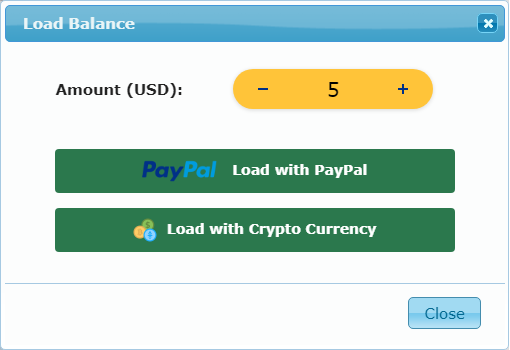
And then pay the amount using either your PayPal account or using Cryptocurrency using a Coinbase account.
PayPal Payments Transfer
If you are using Credit Card via the PayPal option to top-up balance, it may fail with the error:
The instrument presented was either declined by the PayPal or bank, or it can’t be used for this payment.
When that happens, I recommend first loading the Balance to your PayPal account – either using Bank Transfer or a linked Credit Card and then using the loaded balance to Top-up the Subtitle Translator balance. Or you can use “Strip”, which not only supports Credit/Debit cards, but few other local/regional payment solutions too.
Cionbase Payments Transfer
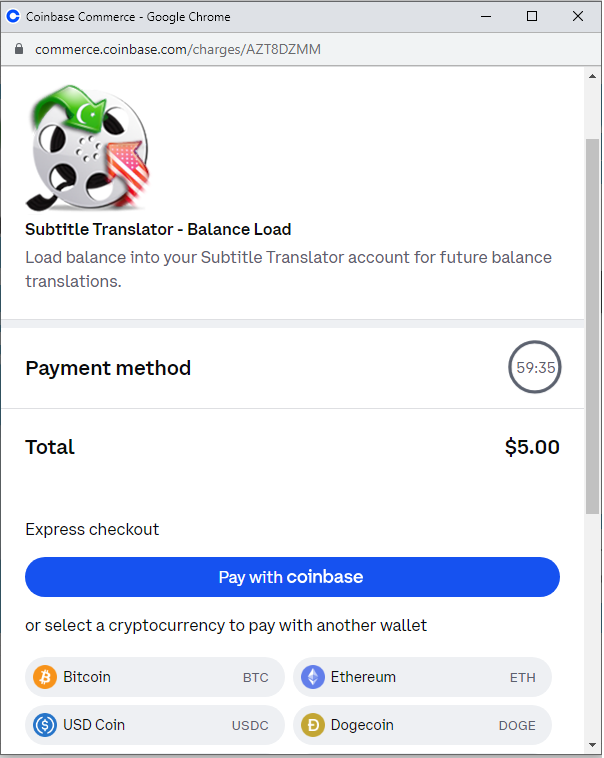
You can top-up balance using Cryptocurrencies like Bitcoin, Ethereum and many others. You can do this via your Coinbase account, or can also directly transfer from your wallet in the popup window:
Stripe Payments
Stripe is another popular payment gateway support on my website. You can learn more about this here. It not only supports all popular Credit and Debit Cards, but also supports some other regional payment solutions like Link, AliPay, etc.
To make card payments, choose the Strip in the “Load Balance” pop-up. This redirects to another pop-up dialog (from Stripe) to get in your payment details:
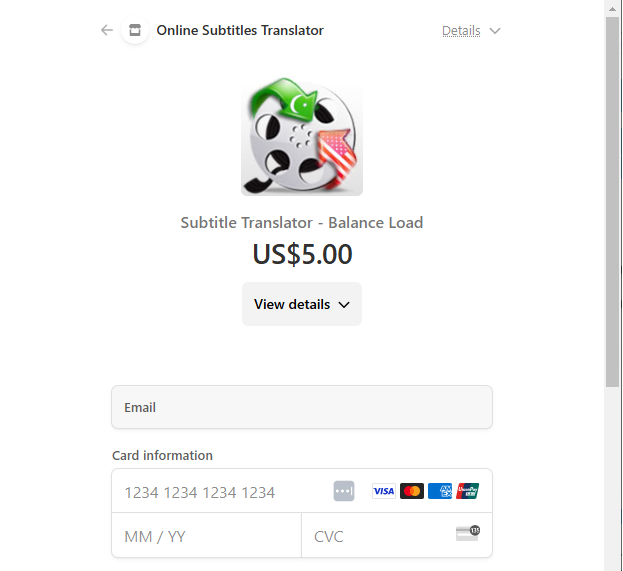
Note: This is a Strip hosted page so your payments are directly processed by that company and none of the Payment details are stored on my website. Only when the payment is processed by Stripe, it notifies my site about the payment success/failure state.
Once the payment is processed, you will get a confirmation email and the balance will be available in your account – usually within a minute or so.
How to get back or refund the loaded balance
There could be a hundred of reasons why you want your money back. Like you accidentally loaded more money than you were thinking of, or it could be that you no longer plan to use the service and want to get back any remaining amount.
No matter what the reason is, the refund process is also automated and instant (at least from my end). To get your money back, click on the  icon, and it should bring up a refund dialog like the following:
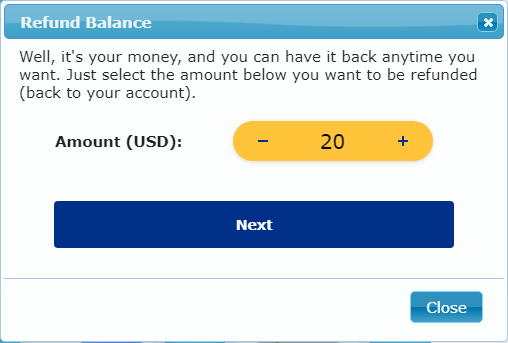
Select the amount you want to get back – the default is your current balance. Confirm the action and it should immediately start the refund processing. Though it may take approx 1-2 days for the refund amount to appear back in your PayPal balance.
In case the refund process fails, or you have any other questions or queries, please feel free to get in touch with me, and I will try to get back to with solution/fix ASAP.
Hello,
It took me a while to configure the payment method to make it a little cheaper, probably due to my clumsiness, but I finally got it right, and I’m trying out your online translations, and they seem to work so well. I just wanted to ask you one thing…
When I’ve done translations with Gemini Flash, one by one (horrible, what a great job you did in providing the ability to do batch work…), when I asked for a translation, I gave the AI some parameters, such as…
“Translate this text file for me using language that’s not literal, but more natural, more colloquial…”) and the truth is, it did quite well.
In your website interface, is it possible to give the AI some parameters like the ones I’ve mentioned to get closer to an optimal translation? If not, could you implement this in the future, or would it be too complicated and not considered?
Thank you and congratulations on your work.
Hi Javier,
Thanks for your feedback and I’m glad you are finding this tool generally of help.
Regarding the AI prompt customisation, yes, you can give some additional instructions or notes to improve or tweak the way AI models handle translation. You can read more about this here:
https://blog.syedgakbar.com/subtitles-translator-help-tips#llm-prompt-extension
I hope this helps. If you have any other questions or queries, please do let me know.
Regards,
Akbar
Hi, I’ve already seen it, but I don’t know if I’m using it correctly because one thing confuses me…
Where does the prompt go in
Synopsis or Summary
or in
Additional instructions or hits?
That is, what do I put in each of the areas?… It’s not very clear to me… So far, I’m putting the prompt in Additional instructions or hits, and leaving Synopsis or Summary blank… I don’t think I’m doing it right, am I?
My prompt is this…
“Translate these subtitle files from English to Spanish in a conversational manner, using natural, non-literal language, as if spoken by native Spanish speakers. Make sure the translated text matches the timing of the original English audio.”
Where do I put it? And what do I put in the other area?
Thanks¡¡
Hi Javeir, this type of prompt text would go in the “Additional Instructions or Hints” section as you want to slightly tweak the behaviour of the translation. Please note that both of the Synopsis and Additional Text are appended to the final prompt, and while you can technically use these interchangeably, I decided to split this to make it a bit easier for the user. Synopsis is to provide context for the subtitles to help the translator better understand the style, tone and type of characters speaking.
Looking at your prompt, I would slightly rephrases this to avoid some redundant instructions, which are already being added to default prompt. So I would suggest to go with something like the following:
“Translate using natural, non-literal language, as if spoken by native Spanish speakers.”
I hope this helps. If need further clarification or have more questions, please do let me know.
Regards,
Akbar
Please consider making Deepseek AI free. Thank you very much.
Thanks for your feedback. However, I’m currently using a paid subscription of the DeepSeek API which charges per token. With the current webstite usage, I’m simply can’t afford to offer this for free.
But I will see if I can come up with some other user based API keys model soon so that more people can enjoy this service with their own keys.
Regards, Akbar